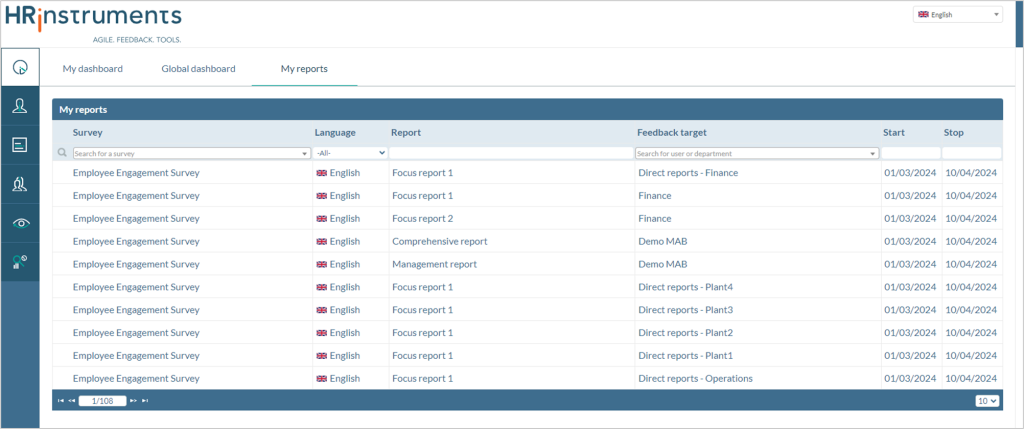
The overview can be searched within the individual columns to find a specific report.
If the permission is granted, a report can be downloaded in PDF format or as a CSV export after selecting it. The PDF report can also be sent directly via email to other individuals.
Display of the Report Overview
The default view of the report overview is the list (see the first screenshot).
Alternatively, the display can be switched to “by Survey.” This groups the reports by surveys and sorts them according to the organizational structure. This is advantageous when many users have access to multiple reports from an employee or pulse survey.
The “by Survey” display differs from the default view in three ways:
- The filterable columns are adjusted.
- Surveys are listed instead of individual reports.
- If both organization-wide feedback formats and individual feedback formats (e.g., 360° feedback) are enabled, the individual reports are found in a separate tab.
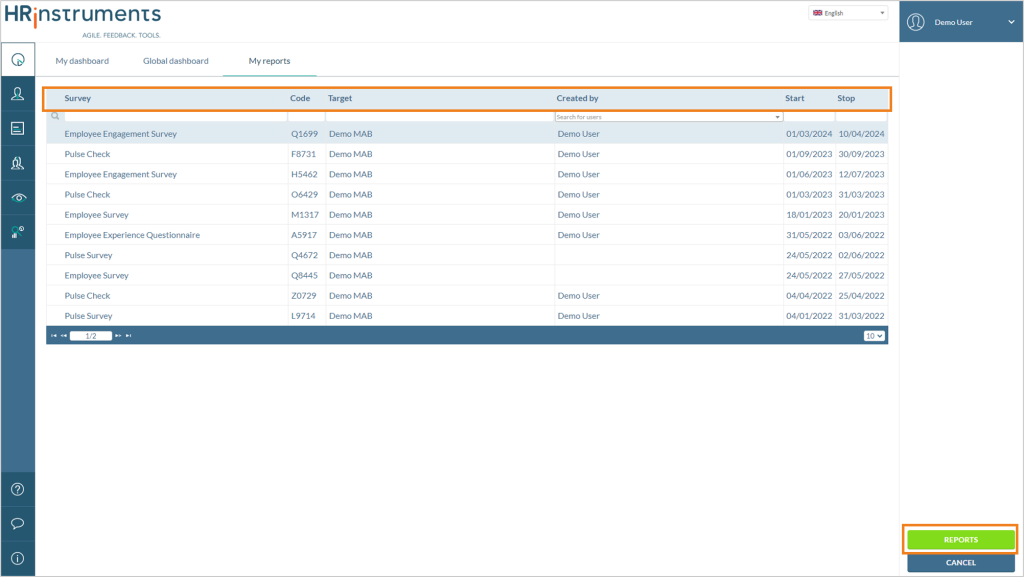
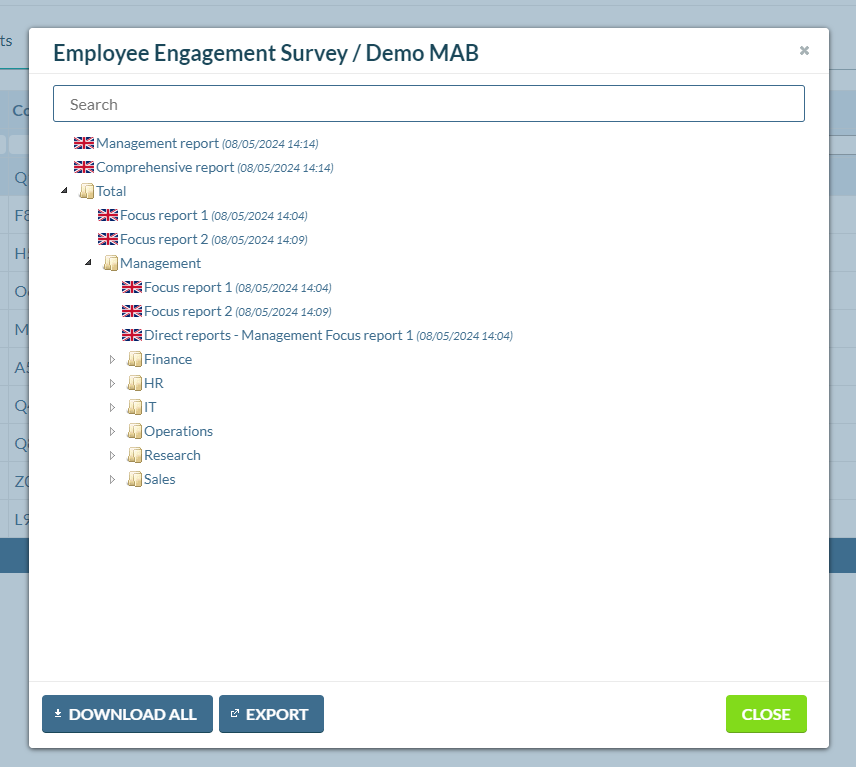
To download or export the reports, select the survey and click on “Reports.” This will open the overview of all reports for the survey to which you have access, sorted by organizational units. A double-click allows you to download a report. The “Export” button allows you to download the reports as a CSV file.