
How can a target group be created?
Existing target groups can be managed and new groups added in the “Target groups” tab.
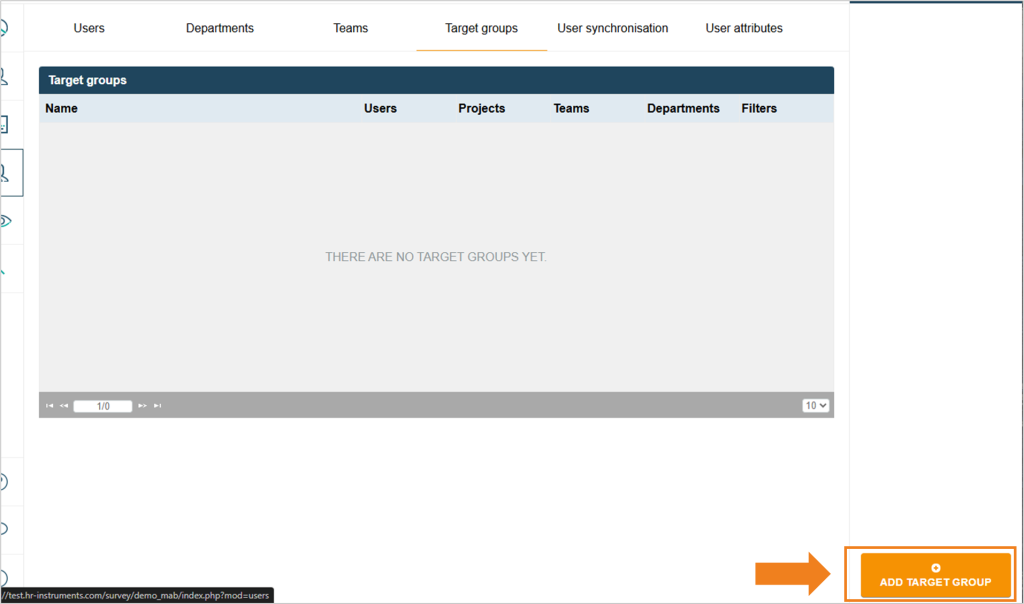
In the window that opens, you can now assign a name for the group.
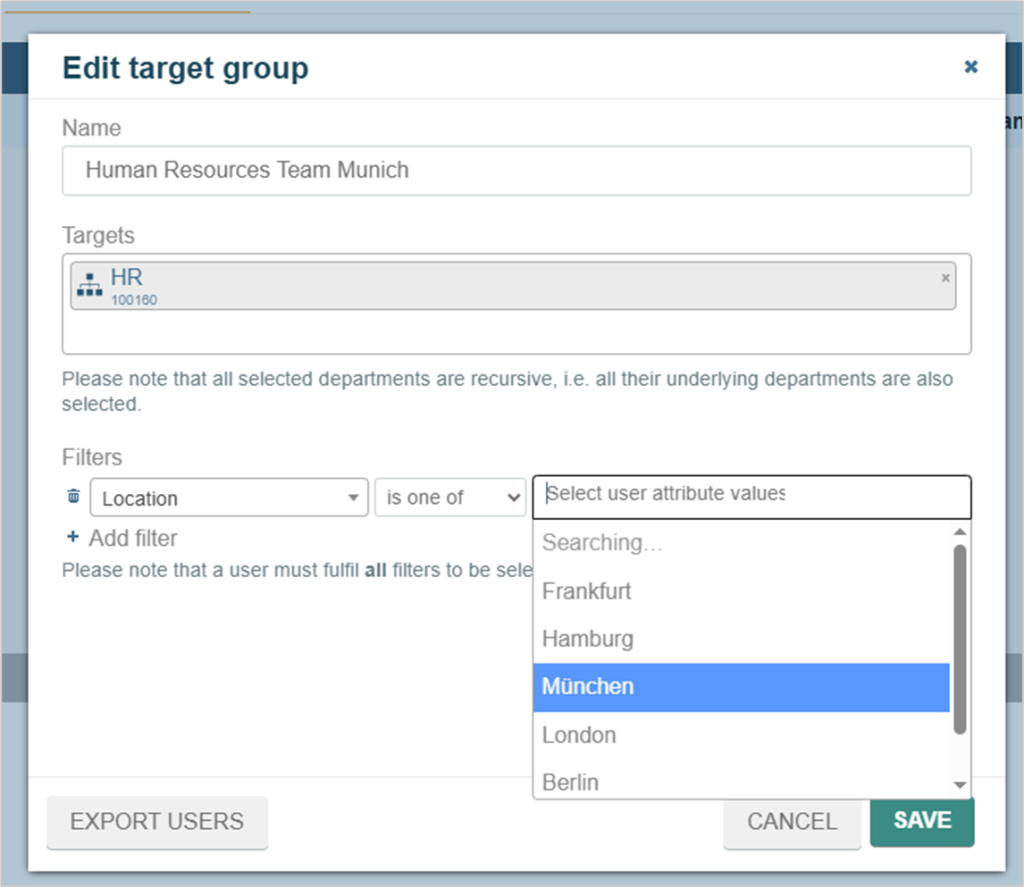
Departments, teams or project groups as well as individual users can now be selected in the text field below.
Below this, you can now filter further using the user attributes. When an attribute is selected, the possible characteristics are automatically displayed in the dropdown on the right.
Example: All members of the HR department at the Munich site
When can target groups be useful?
With the help of target groups, specific department, team and project contexts can be addressed in any combination apart from the classic survey of the entire company. In addition, the feature enables further filtering via user attributes.
With the help of this function, not only people from certain company contexts, but also people with certain characteristics can be the target of a survey.
The auto invite function is specially tailored to the concept of target groups. The combination of the two tools makes it possible to automate long-term surveys for onboarding or exit surveys, for example. While the target groups, once created, remain up-to-date via regular data import, new participants can be automatically invited using the automatic invitation function.
Example of a combination of target group and automatic invitation
A fictitious company wants to set up a permanent survey for female employees with management responsibility in order to create a mouthpiece for challenges in everyday working life. The aim is to automatically include all existing female managers in the survey as well as female managers who join the company in the future.
Step 1: Create target group
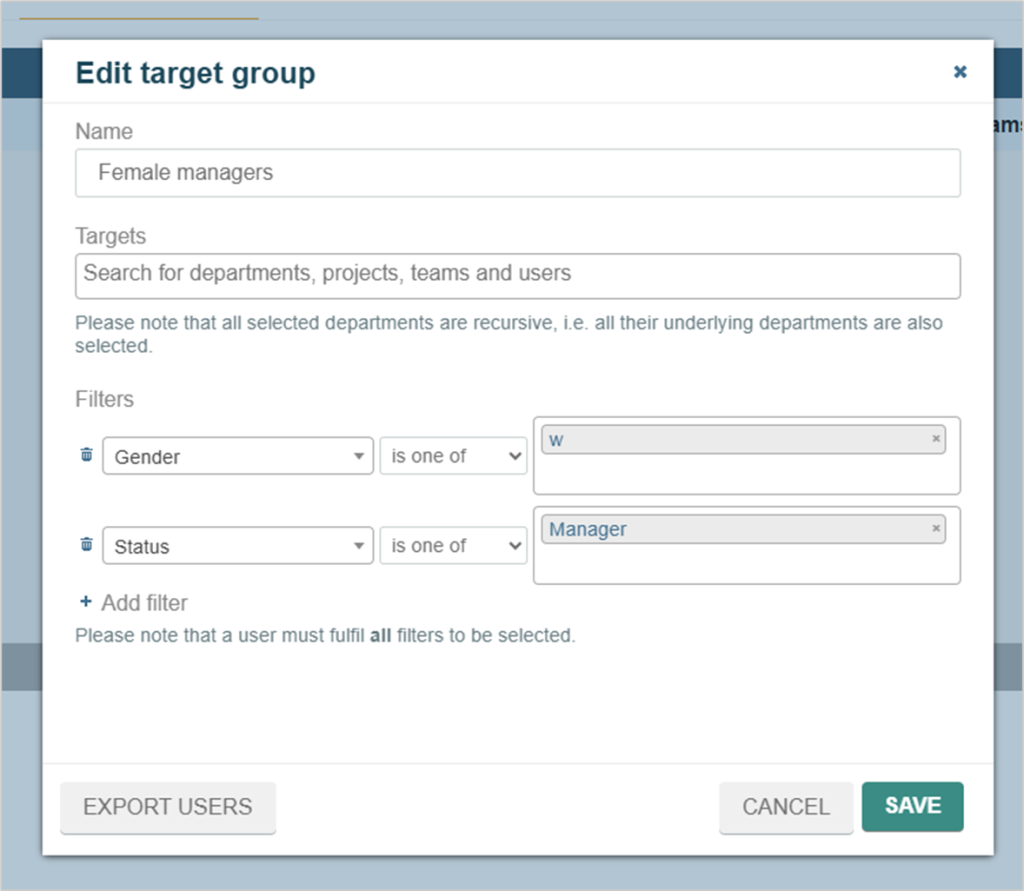
Create a new target group in the “Target groups” tab, select the entire company and specify the group of people using the user attributes.
Step 2: Start the survey in individual mode
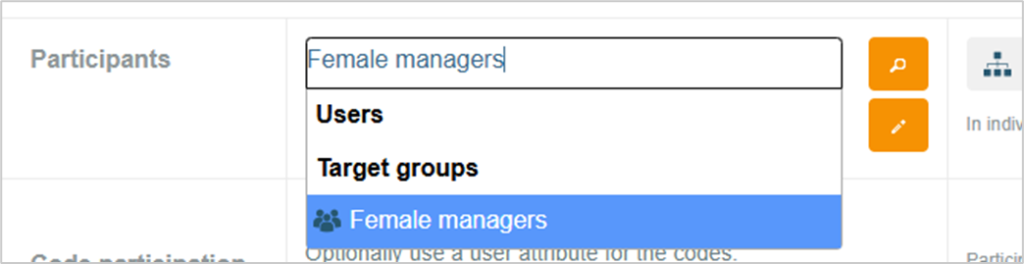
When starting a survey, switch to individual mode and find and select the target group by name.
Step 3: Start feedback and set automatic invitations
Up to now, the survey has automatically been aimed at all female managers who are managers at the time the survey is created. An automatic invitation can be created in order to include female persons in the survey who only acquire management responsibility later in the survey period.
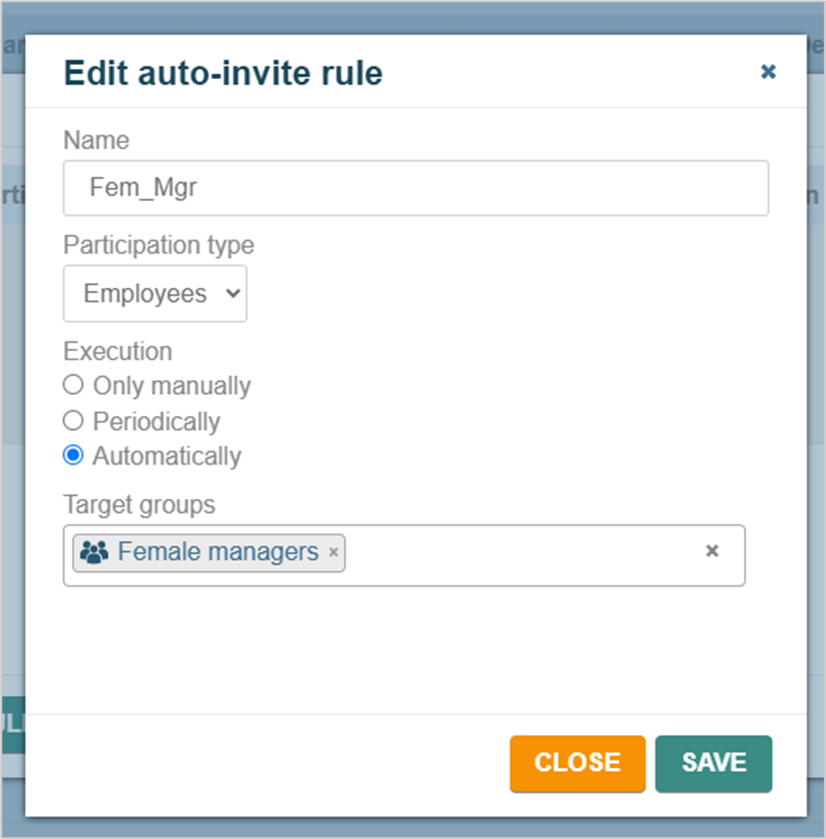
The system then automatically checks (in the case of the “Automatically” execution option) with each user synchronization whether the characteristics defined in the target group apply to new persons. If this is the case, they end up in the target group and then receive an invitation to the survey.