How can I limit access to topics in the template editor (private, public and template-owned topics)?
Access restrictions can be configured for new and existing topics in the template editor for all survey types.
Limiting access means that users with the right “Manage Template” will only have access to selected topics (and questions) within an organization’s topic library.
Why limit access to topics?
This feature can help manage feedback landscapes administered by different users and those implementing fully decentralized surveys.
Introducing private and template owned topics reduces the risk of relevant topics for the organization being misused (e.g., Employee Survey content), increases privacy when dealing with sensitive themes, and helps decrease content overload.
Use case 1 (fully decentralized surveys): Managers implementing surveys with customized questionnaires within their area of responsibility without the supervision of administrator users.
Use case 2 (administration with different users): HR Business Partners in different locations are responsible for centrally initiating 360º Feedback for their managers. Each location is responsible for developing its own questionnaire.
Configuration in the system
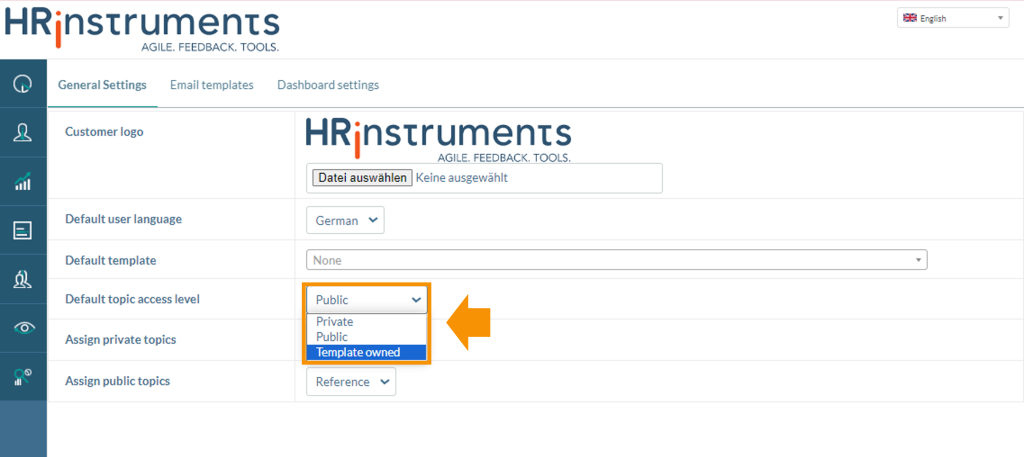
By default, newly created topics are automatically set as public. Changes to this setup can be made by administrators under “Customer Account” > “General Settings.”
Under “Default topic access level,” the values “private” and “template-owned” can be selected.
Furthermore, the assignment of existing topics to a questionnaire is, by default, reference based. Reference-based means that changes made to a topic (e.g., adding, changing, or deleting questions), regardless of the template, will reflect across all templates where it is displayed. For example, if a question is added to the topic “Leadership” while editing the template of Employee Survey 2024, this change will be seen on all Employee Survey Type templates.
The topic assignment can be changed from “reference” to “copy” or “choice,” for both private and public topics under “Customer Account” > “General Settings” > “Assign private topics” & “Assign public topics.”
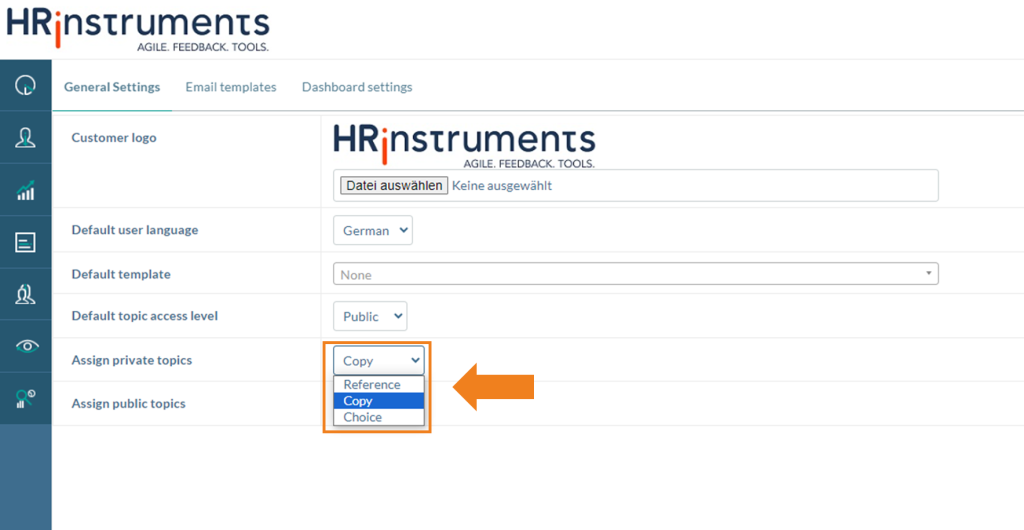
Changing the assignment of a topic to “copy” implies that if users add an existing topic to a questionnaire, a copy of that topic will be made, and its original version will be preserved.
If “choice” is selected, it means that users can choose whether they want to add it as a reference or a copy to their questionnaire.
Changing access levels for existing topics
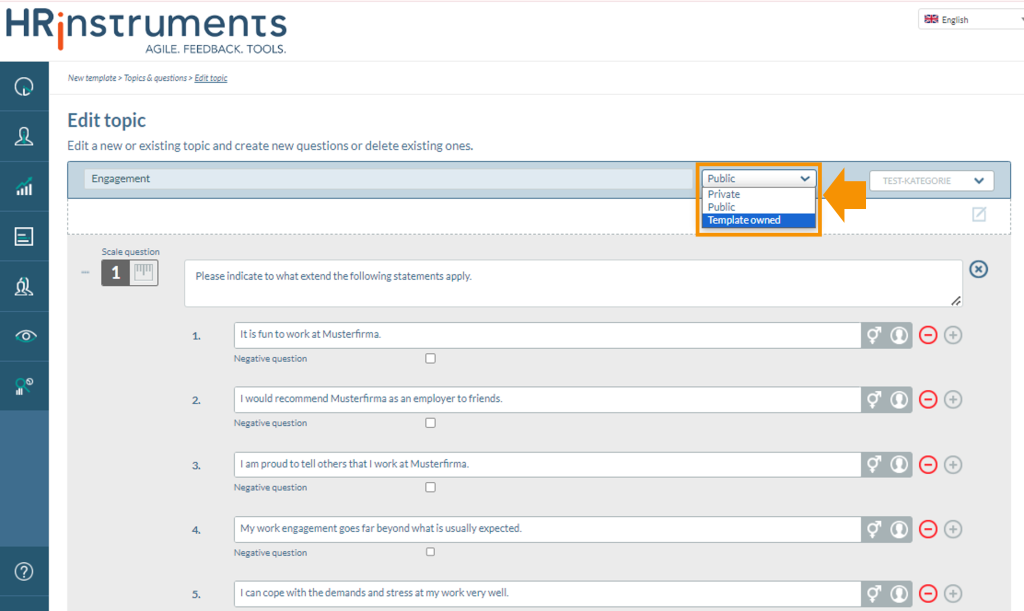
Changing the access levels of existing topics can only be made by system administrators directly in the template editor under “Topics & Questions.” The change can be made directly on the topic’s editing mask.