
The “Switch to role view” drop-down menu is located at the top right of the “My dashboard” page. The desired role and its overview can be selected there.
To change the configuration of the overview, click on the “Edit” button at the bottom right.
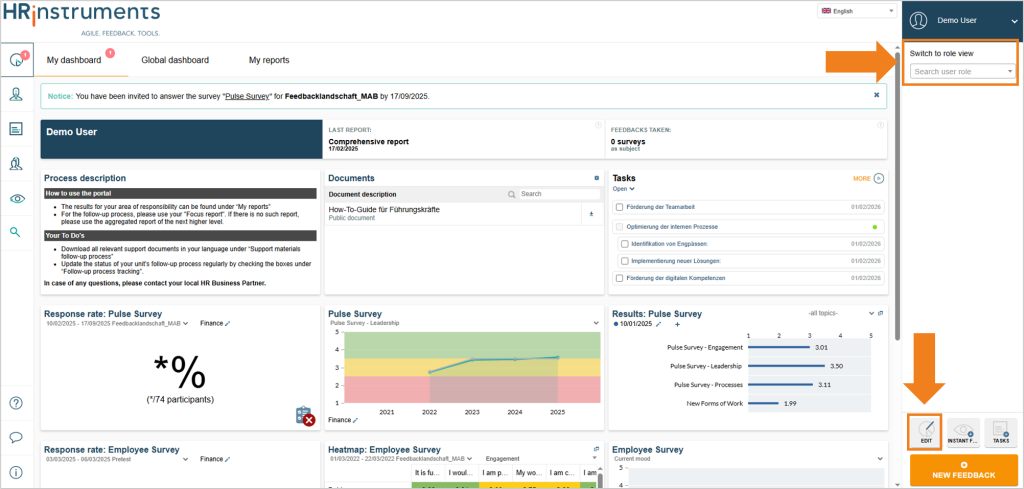
The “My dashboard” area can now be customized for the selected role. Various configuration tiles are available in the ribbon on the right-hand side. To add a tile, simply click on the plus symbol to the right of the tile.
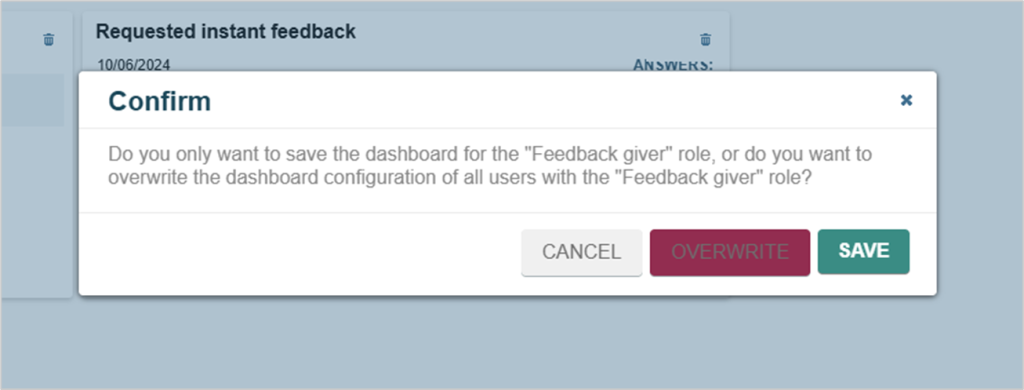
There are two options for saving the changes:
- The configuration can be saved so that it is applied to all users with this role who have not yet configured their own dashboard. Individual user dashboards that have already been created will not be overwritten.
- The configuration can be overwritten for all users with this role. This updates the “My dashboard” for all affected users – regardless of whether they have an empty configuration or have already created their own.