
Step 1: Template
To start a survey, the button “New Feedback” on the overview page (Or in the menu item “Feedbacks”) can be used. This opens the template overview.
The desired template can be selected in the template overview by clicking the “Play” icon in the corresponding template tile at the bottom right.

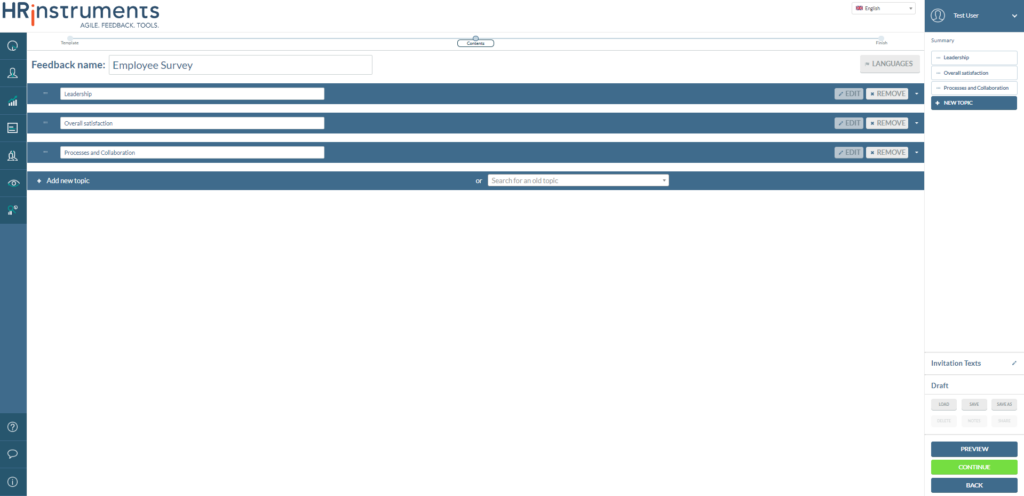
Step 2: “Content”
Normal mode
In normal mode, theme blocks can be added and removed. Depending on the default settings in the template, some topics may be “fixed” so that they cannot be removed.
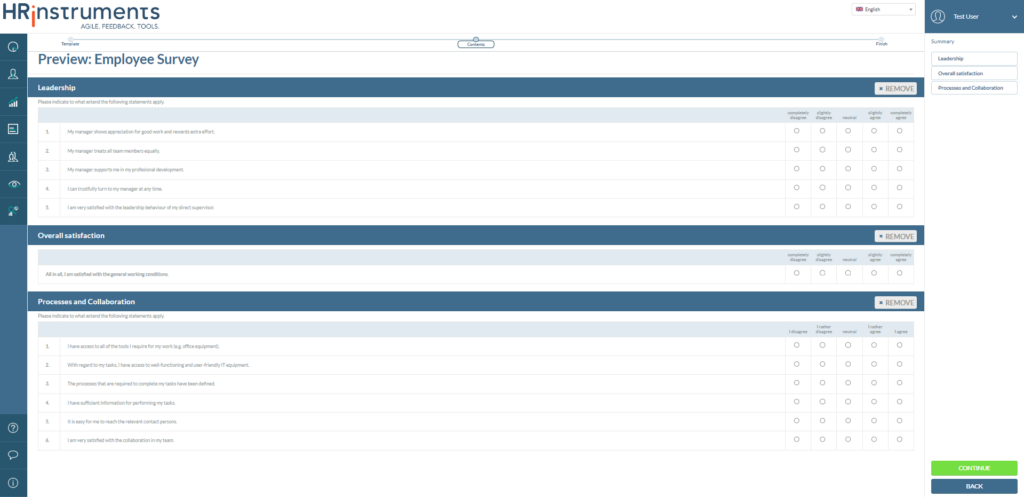
“Fast Lane” mode
If the “Fast Lane” mode has been activated in the template, topics and the questions they contain can be adjusted again or new topics and questions can be added in this step.
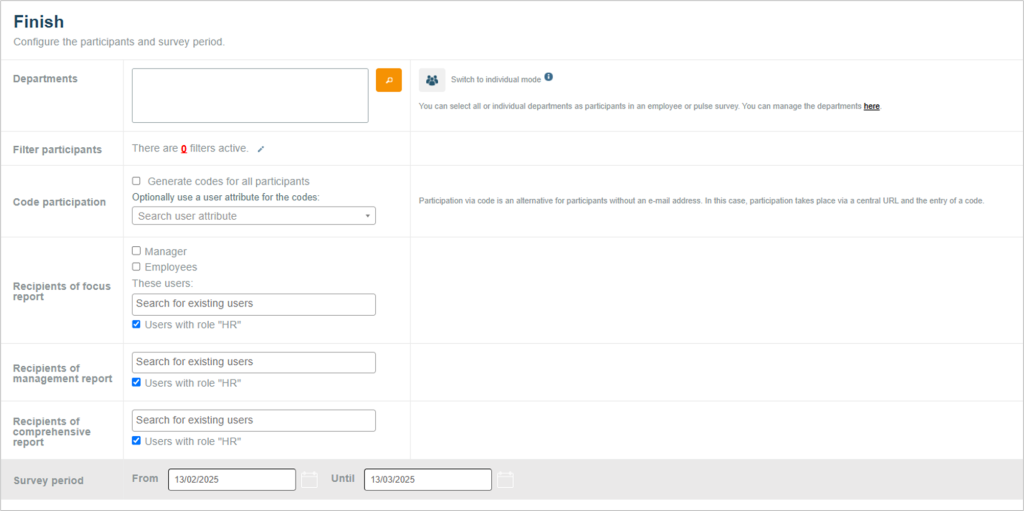
Step 3: “Finish”
In the last step, participants, report recipients and the survey period can be defined. Depending on the type of survey, various settings are possible here.
360° Feedback
Here you can define the people who should receive or give feedback.

Team survey
Here team members can be searched and selected for participation.

Employee survey
Here you can select departments that should receive the survey.
Step 4: “Start feedback”
Clicking on “Start survey” at the bottom right of the screen creates the survey. The feedback can now be viewed and managed under the “Feedbacks” menu item in the “My Feedbacks” tab.
