
In the menu item “Feedbacks” under the tabs “My Feedbacks” and “All Feedbacks” the desired survey can be selected. The “My Feedbacks” tab shows all feedbacks that the user has created himself or herself – the “All Feedbacks” tab shows all feedbacks that have been created in the company.
Clicking on a feedback brings up a sidebar on the right with various information.
Adjust survey period
Here you can view and adjust the time period of the survey.

Check response rate
The response rate shows how many invited persons have already taken part in the survey. In the table, the response rate is also shown in the form of a progress bar.

Send reminders
Reminders can be viewed and created here. A reminder can be sent on the following day at the earliest.

Manage participants
The administration of the participants can be done here. Participants can be invited and deleted, invitations to participants can be resent and participations can be reset.

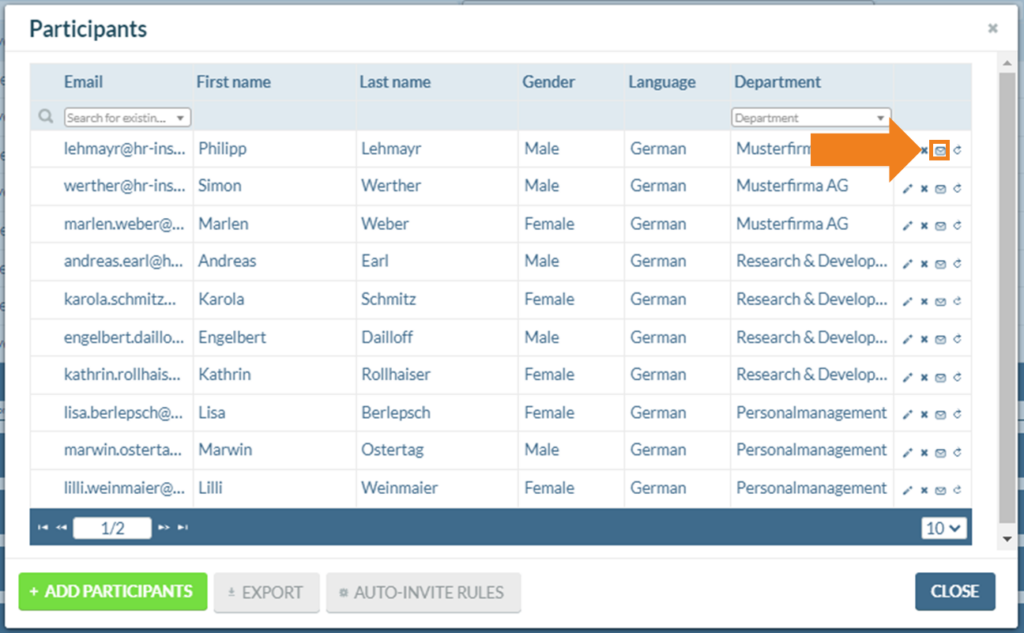
Send new invitation
In the participant management (see above: “Manage participants”) it is possible to select participants to whom a new invitation to the survey should be sent using the button shown.
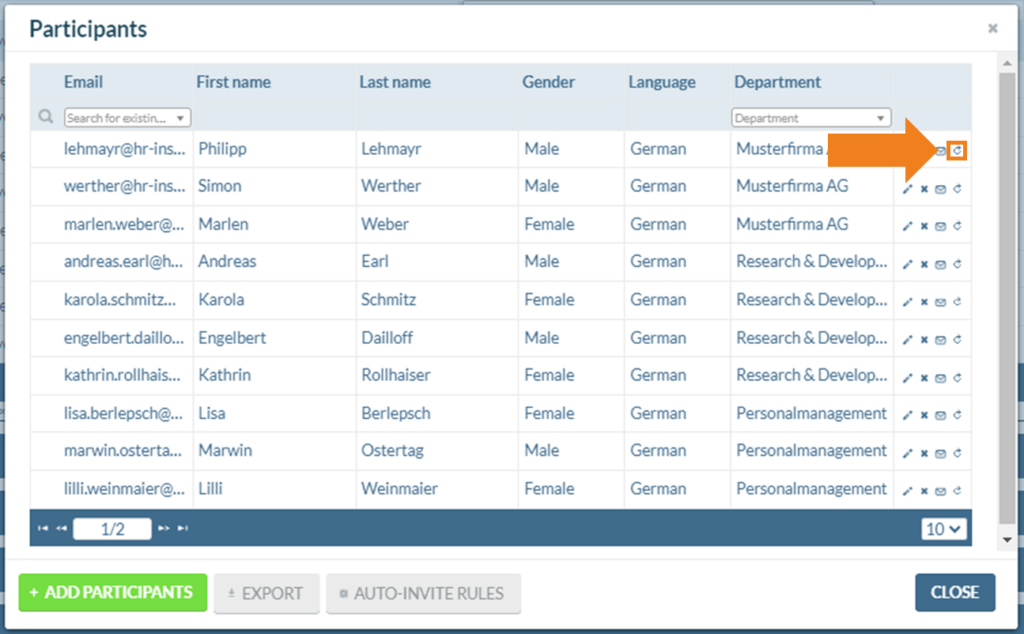
Reset participation
In the participant management (see above: “Manage participants”) it is possible to select participants whose participation in a survey is to be reset using the button shown.
In this way, it is possible to reset answers that have already been submitted, so that the participant in question can complete the survey again.
In this way, it is possible to reset answers that have already been submitted, so that the participant in question can complete the survey again.
Delete participation
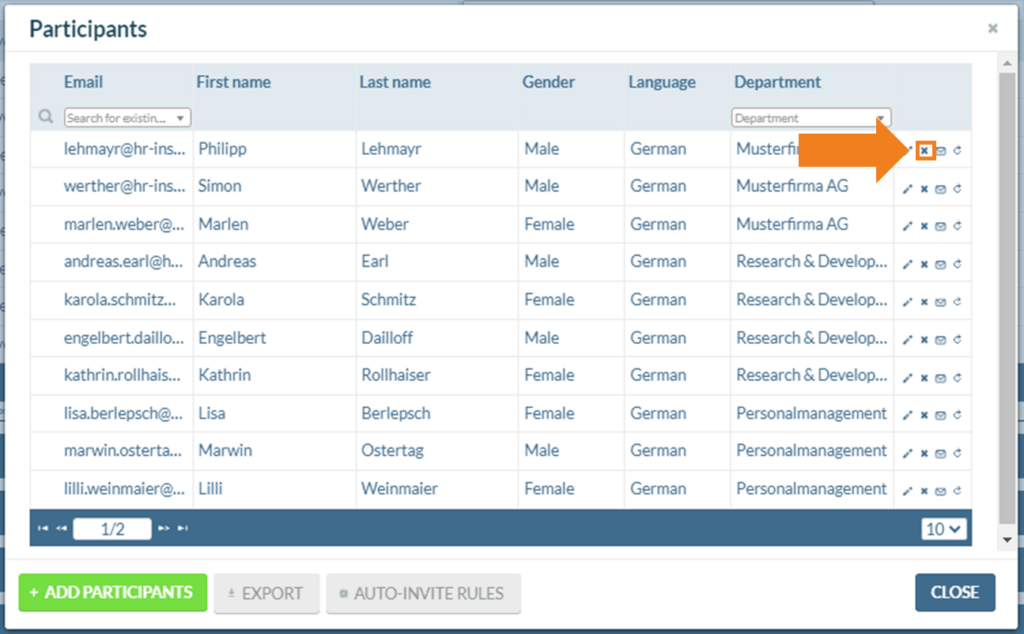
In the participant management (see above: “Manage participants”) it is possible to select participants whose participation in a survey is to be deleted using the button shown.
All answers of this person will be deleted and the participant can no longer take part in the survey. The person concerned will be informed about this by e-mail.
All answers of this person will be deleted and the participant can no longer take part in the survey. The person concerned will be informed about this by e-mail.
Edit participants
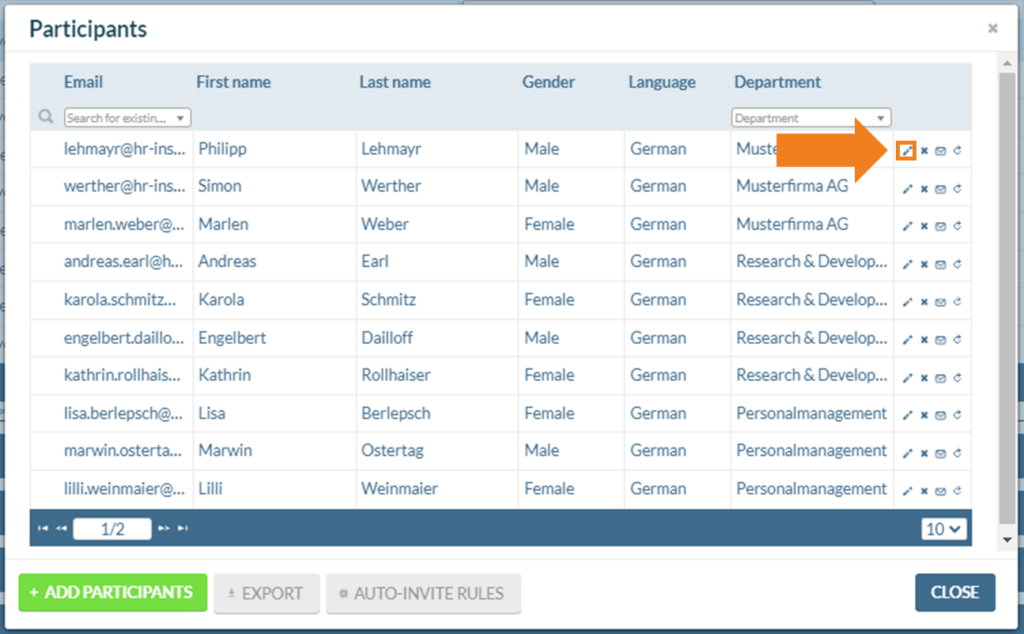
In the participant management (see above: “Manage participants”) it is possible to select participants and edit their table data with the button shown.
Here, first and last name, gender and language can be selected and edited in a new window.
Here, first and last name, gender and language can be selected and edited in a new window.
Delete or disable survey
It is possible to deactivate or delete the survey.
If the survey is deactivated, the current survey is interrupted. Participants cannot access the survey until it is reactivated. In case of deletion, the survey is removed from the feedback list and cannot be activated again.

If the survey is deactivated, the current survey is interrupted. Participants cannot access the survey until it is reactivated. In case of deletion, the survey is removed from the feedback list and cannot be activated again.