
If you create a new template, it can be edited by all users who have the “Manage template” or “Manage customer account” right.
To restrict editing access, Template Access Management must be activated for your environment. If you wish to use this option, please get in touch with your contact person at HRinstruments.
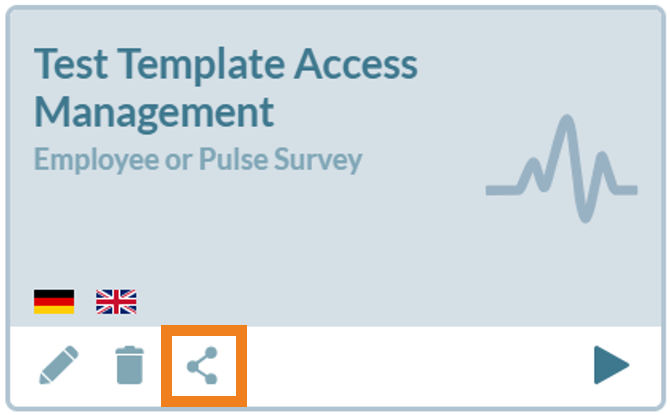
You can tell that Template Access Management is activated by the fact that the “Share icon” is displayed in the templates:
How do I use Template Access Management?
If you create a new template with Template Access Management activated, access is automatically restricted to you.
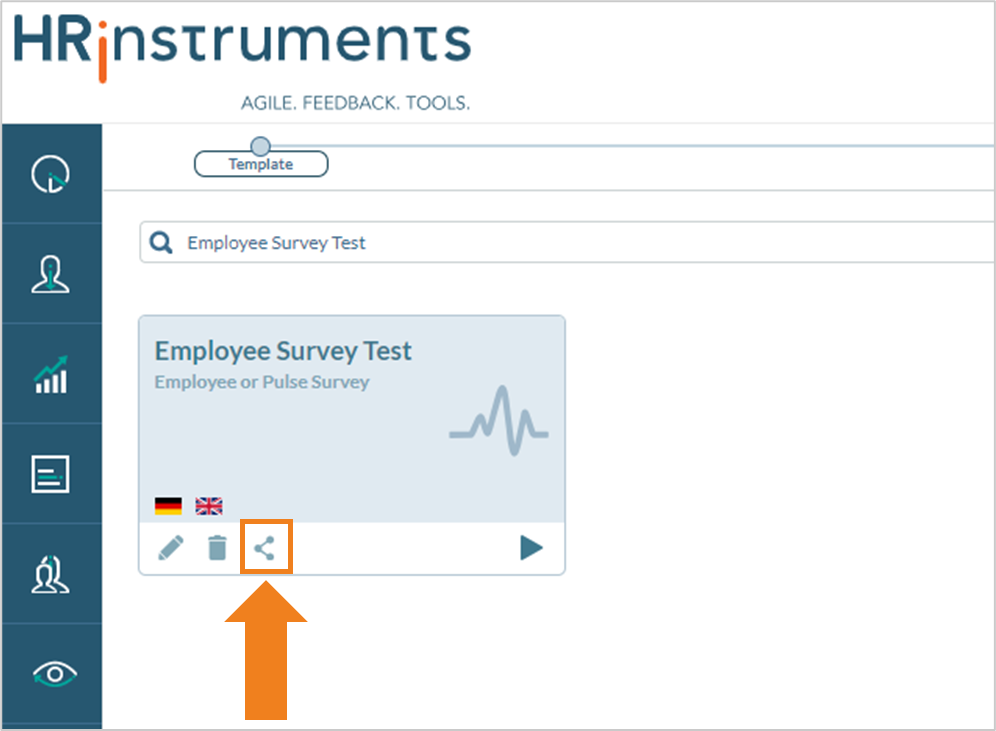
To give other users access to the template, click on the “Share” icon. Access rights for the template can be stored here.
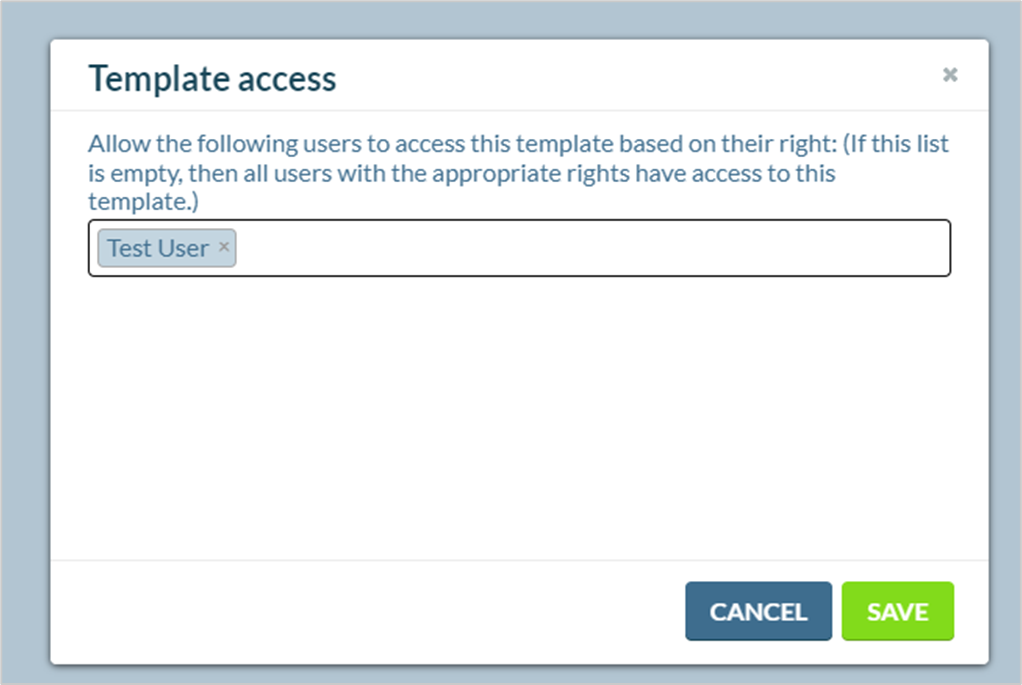
Clicking on the icon opens a window in which individual users can be searched for and selected.
As soon as they are stored here, they can also manage the template – provided they have the “Manage templates” right.
Public templates
If you do not restrict access for all templates, this is also possible. For a template to be accessible to all users with the “Manage templates” right, the list under “Template access” must be empty. This makes this template a public template.
What happens to the existing templates?
If templates already exist at the time Template Access Management is activated, access to them is not restricted but remains public.
However, you can also restrict access to these templates as described above.