On this overview page, you can create new topics and questions as well as activate and edit existing elements for the template.
Depending on the editing status, blocks of topics and questions from your company may already be stored on this overview page.
Create new topic & questions
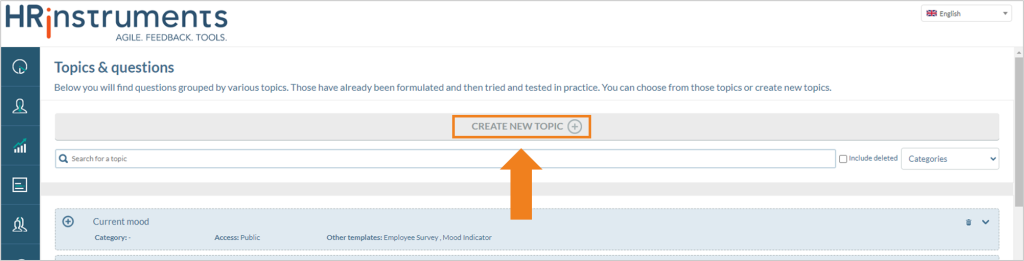
To create a new topic, a new topic block can be opened using the corresponding button.
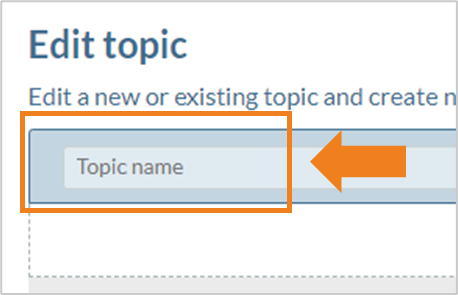
At the top left, you can now assign a name for the topic, e.g. “Work climate”.
The following block differs depending on the type of question. Which types of questions are selected and which adjustments can be made here are explained in the following articles.
View/edit existing topic
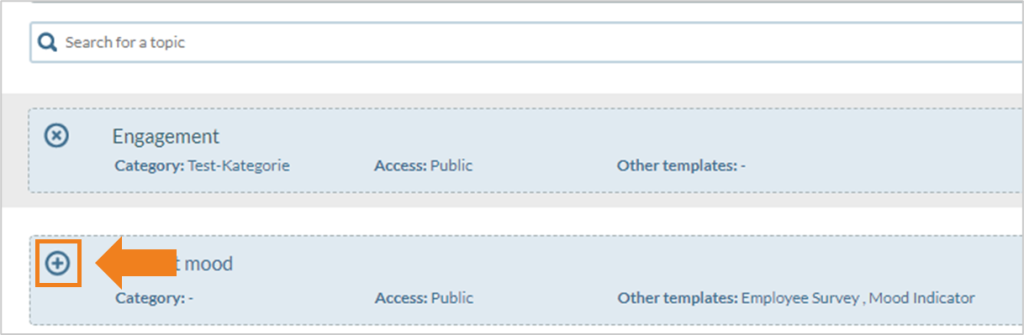
If topics are already listed on the overview page, they can be included in the survey by clicking on the “Plus”-sign on the left in the topic tile.
The “state” of the topic at the start of a survey can be defined on the right-hand side of the topic tile. This is possible via a drop-down menu.
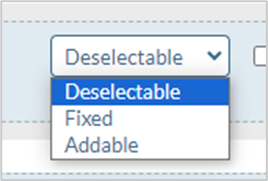
“Deselectable” as an option selects the topic by default when starting a survey; however, it is possible to remove the topic from the selection again.
“Fixed” as an option automatically selects the topic; it is not possible to remove the topic when starting the survey.
“Addable” as an option does not select the topic by default when starting a survey and only suggests it; it is possible to select the topic there.
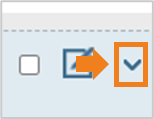
The checkbox next to the drop-down menu allows you to edit the theme in “Fast Lane” mode. To do this, “Fast Lane” mode must be activated under “Rules”.
The pen-and-paper symbol can be used to edit the topic.
The arrow symbol on the edge of the tile extends downwards and displays all the questions that have been created in the topic.