
Before the start of the survey: Department mode vs. individual mode (MAB) / Single target mode vs. bulk mode (360°)
When completing a survey, it is possible to invite individual persons, teams or target groups in addition to the classic invitation of departments in employee and pulse surveys. More information can be found here.
When completing 360° feedback, it is possible to create feedback for several feedback recipients at once in addition to the classic invitation of a single feedback recipient. More information on this here.
Before & during a survey: “Manage participants” in the sidebar
In the “My feedbacks” or “All feedbacks” tab, you will find the “Participants” option in the sidebar on the right when selecting a survey. There you can see the number of participants selected for the survey as well as a pencil icon. This symbol can be used to navigate to the participant overview.
Depending on whether the survey has only been created or has already started, there are additional options regarding the invitation.
Survey has been created, but not yet started
If the start date is still in the future, the participants can be viewed and edited in the participant overview, depending on their authorization. This is again possible via the pencil icon to the right of each participant entry.
Participants can also be deleted via the cross symbol and thus excluded from participating in the survey in advance.
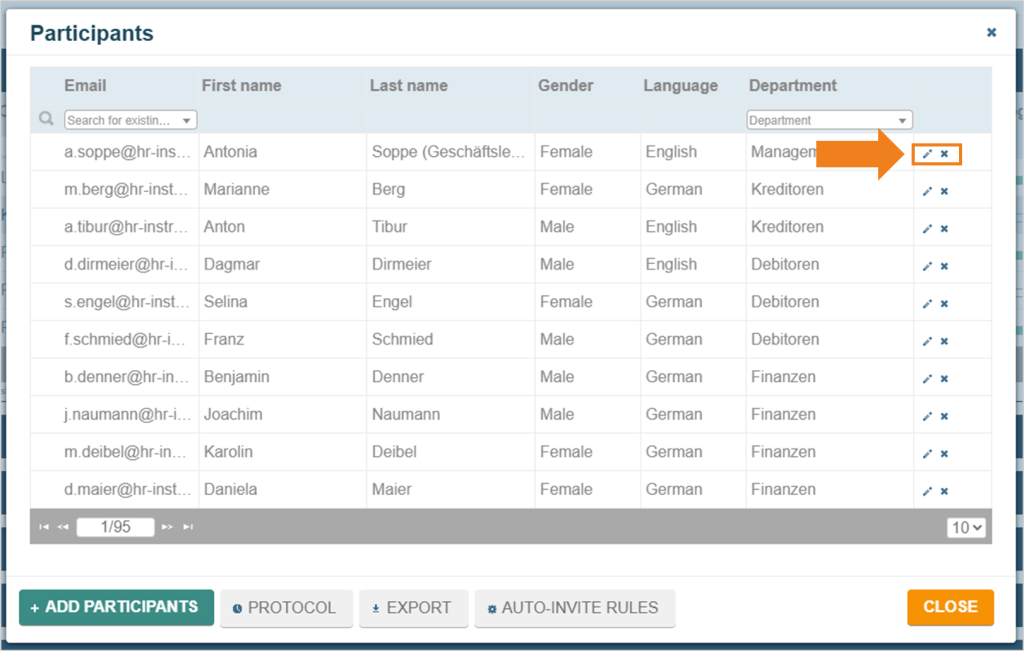
Below the list of participants, it is possible to add participants at a later date using the corresponding button.
The “Protocol” button can be used to view when and how participants are scheduled for the survey invitation.
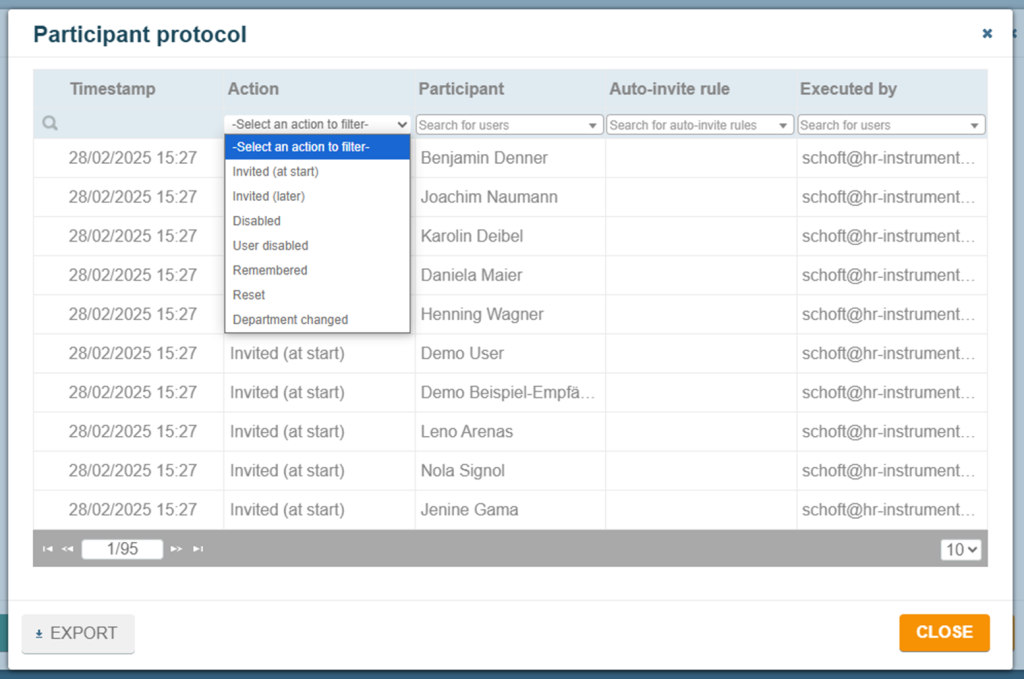
The “Export” button provides an Excel file with additional information on the user and invitation.
The “Auto invite rules” button provides an overview of configured, automated invitation processes. More information can be found here.
Survey has already started
During the survey period of a feedback, participants can be viewed and edited in the participant overview, depending on their authorization. This is again possible via the pencil icon to the right of each participant entry.
Participants can also be deleted via the cross symbol and thus excluded from taking part in the survey. They will be informed of this by e-mail.
There are also two additional options:
Letter symbol: The invitation is sent to the participant again.
Circular arrow: The user’s participation in the survey is reset. The participant will be informed of this by e-mail.
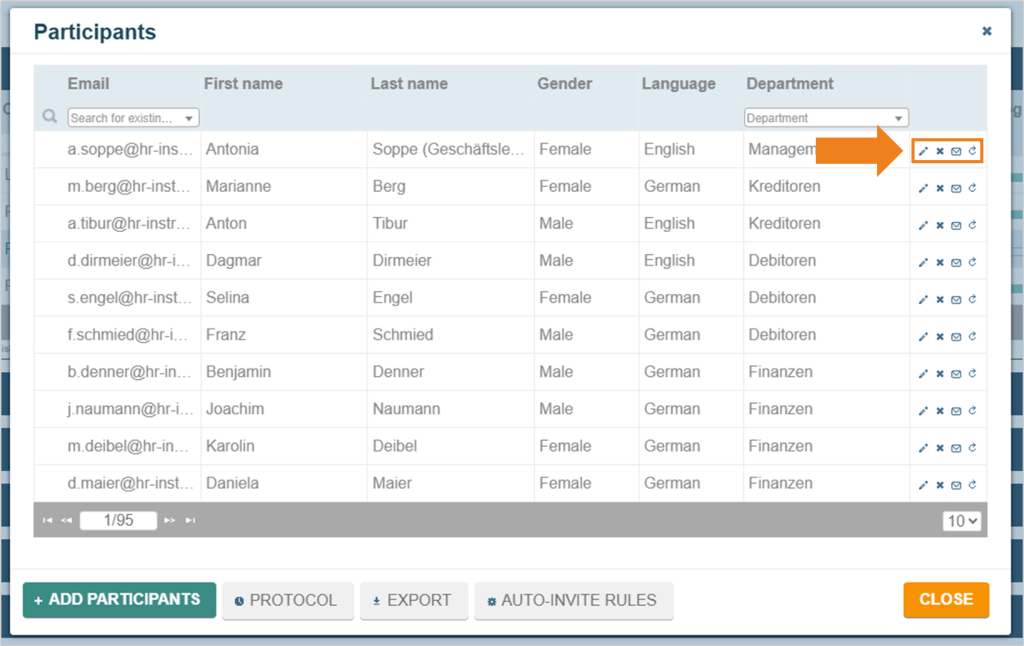
Below the list of participants, it is possible to add participants at a later date using the corresponding button.
The “Protocol” button can be used to view when and how participants are scheduled for the survey invitation.
The “Export” button provides an Excel file with additional information on the user and invitation.
The “Auto invite rules” button provides an overview of configured, automated invitation processes. More information can be found here.
After the end of the survey: At what point is an invitation no longer possible?
Participants can be invited until the end of the survey period.
As soon as the day entered as the end date has expired (00:00), it is no longer possible to participate or invite participants.