
Determine the relevant employees
Access codes can be created either for all employees or only for employees without an email address. How to activate the codes for all employees can be found here.
By default, access codes are generated only for employees without an email address. In the system, those users have the “dummy email address” state stored in their profile. This means that not all users who do not have an email address stored in their profile are automatically considered relevant for the generation of access codes.
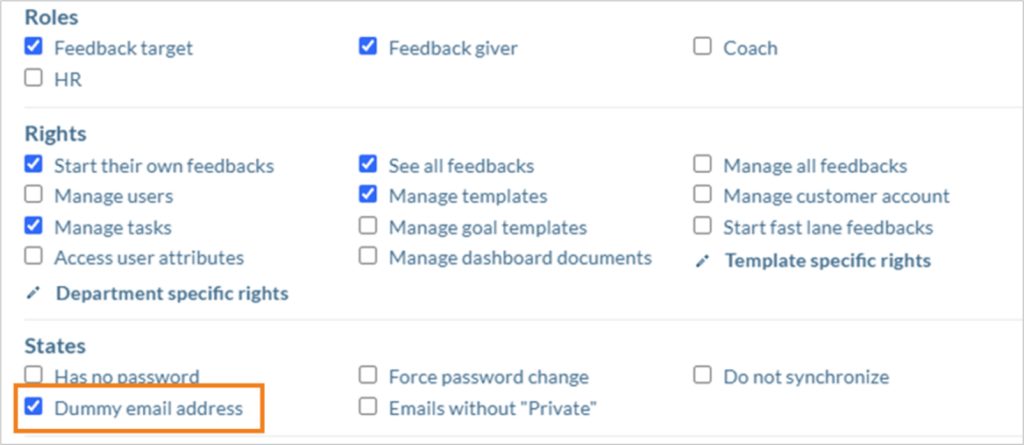
To give users the “dummy email address” state, there are two ways:
Manual maintenance and upload of organizational data.
- To manually add the state, click the button in the relevant user profile.
- In order for the “dummy email address” state to be granted when uploading the organizational data, this must be enabled in the system before the upload. To do this, please contact your responsible key account manager. The “dummy email address” status is then activated for all users who did not have an email address asigned in the organizational data during the upload.
Generating the codes
There are two ways to generate codes.
Generating random codes
The standard case is the generation of random codes.
Random codes will be created at the start of the survey (not in the template editor).
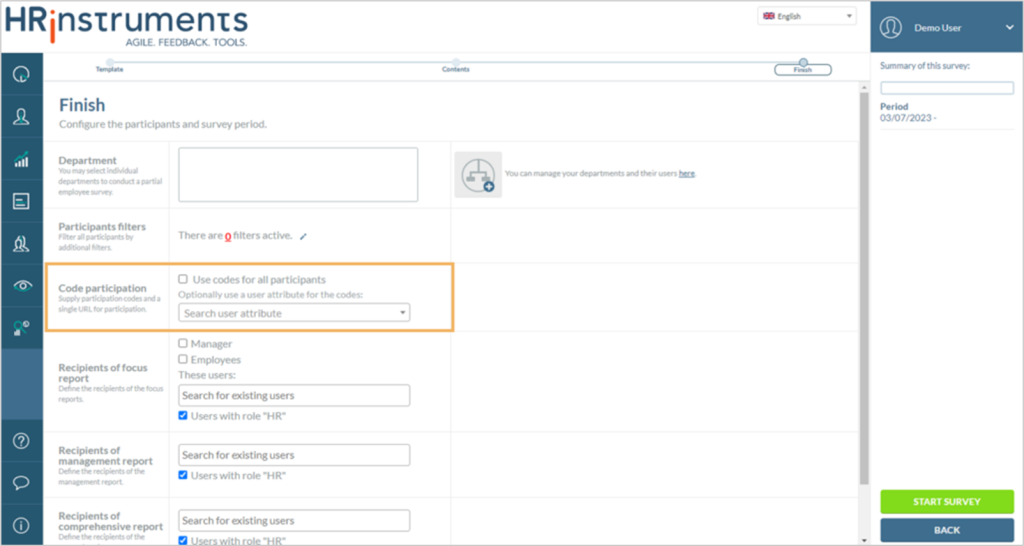
When starting the survey, the checkbox “Participation via codes” is displayed. This enables participation via codes for all users with the “Dummy email address” state.
If the “Use codes for all participants” checkbox is checked, codes will be created for all users (regardless of the “Dummy email address” state).
Generating your own codes
The second option is to define your own codes and import them together with the organizational data.
The advantage here is that the format of the codes can be defined independently and they are not randomly generated by the system.
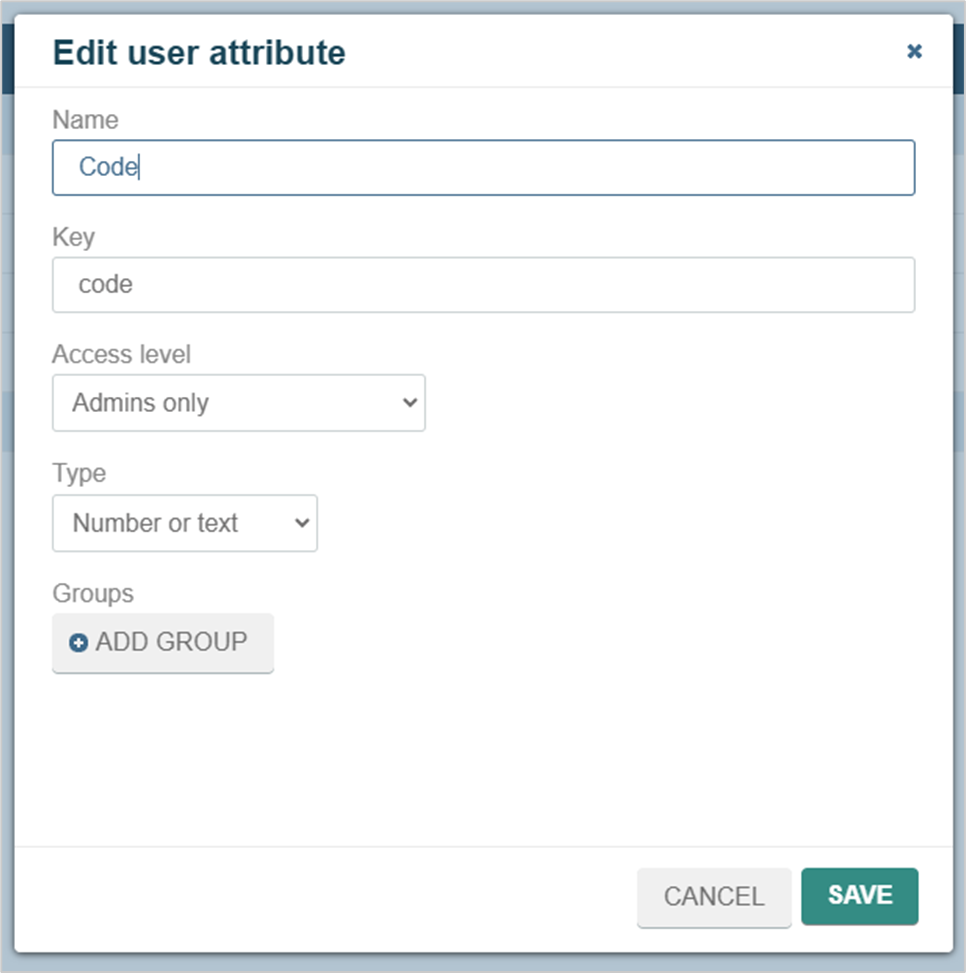
Step 1: Create “Code” attribute
First, an attribute must be created that records the characteristic from the organizational data.
Step 2: Entering codes in the organizational data
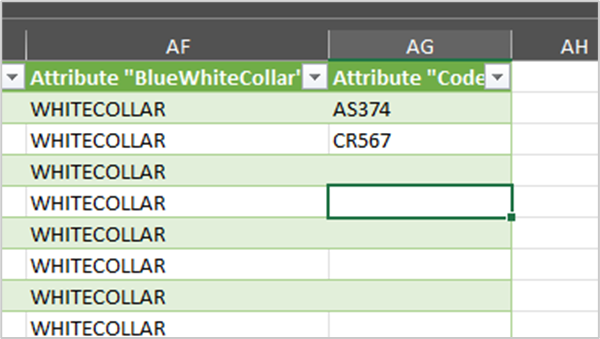
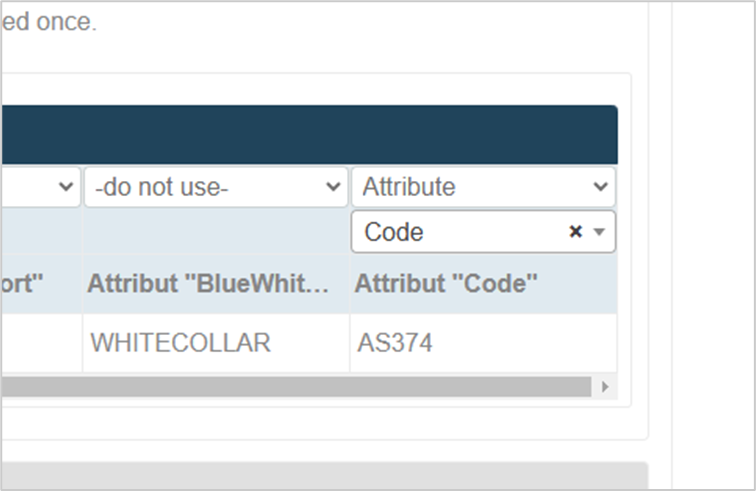
When importing via an Excel file, a column can now be created for the “Code” attribute and filled with any codes. For example, a combination of personnel number and name is common.
Step 3: Perform import
The attribute can now be uploaded to the system as a partial import. If only the attribute is to be uploaded and all other user data has already been imported, this can be carried out as a partial import. In the “Assign data fields to columns” option, only the user ID, the email address and the column with the code attribute need to be assigned.
Step 4: Select code attribute when starting the survey
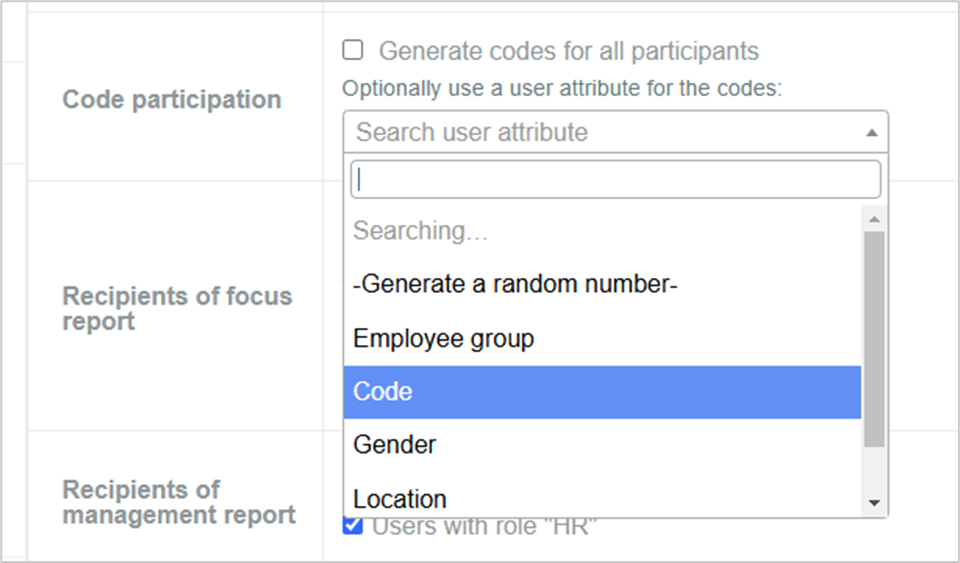
When starting a survey, the code attribute can then be used in the “Finish” tab under “Code participation”.
Retrieving the codes
- After creating a survey to which users with the “dummy email address” state have been invited, the feedback creator receives an email with the access codes and the participation link.
- In addition, the list of access codes can be found under “My feedbacks”. When clicking on the corresponding feedback, the button “Export codes” is displayed on the right side under “Participants”. This allows the download of a csv file with the codes, the assignment and the participation link.
- The distribution of the codes to the employees is not done by HRinstruments.
- The “Export Codes” button is displayed to all users with the right “Manage all feedbacks”. This allows multiple users to download and distribute the codes.
Participation
- There are two ways to participate in the survey with the code:
- Open participation link (e.g., kiosk device, BYOD) and enter the code.
- Single sign-on (if it was already implemented in the customer environment, e.g. via personnel number).
- Employees can also log into the system with SSO and then participate in the survey with the code
- For participation with codes, the normal rules apply: One-time participation; participation can be paused & continued; codes may not be shared with others
- No reminding emails can be sent.
- Report retrievals are only possible for those with dummy email adresses via SSO.
Further information
- Consider the text of the code entry page for translations.
- Codes are numeric and 8-digit (between 1 and 999999 all numbers can be distributed)