Adding and editing user attributes
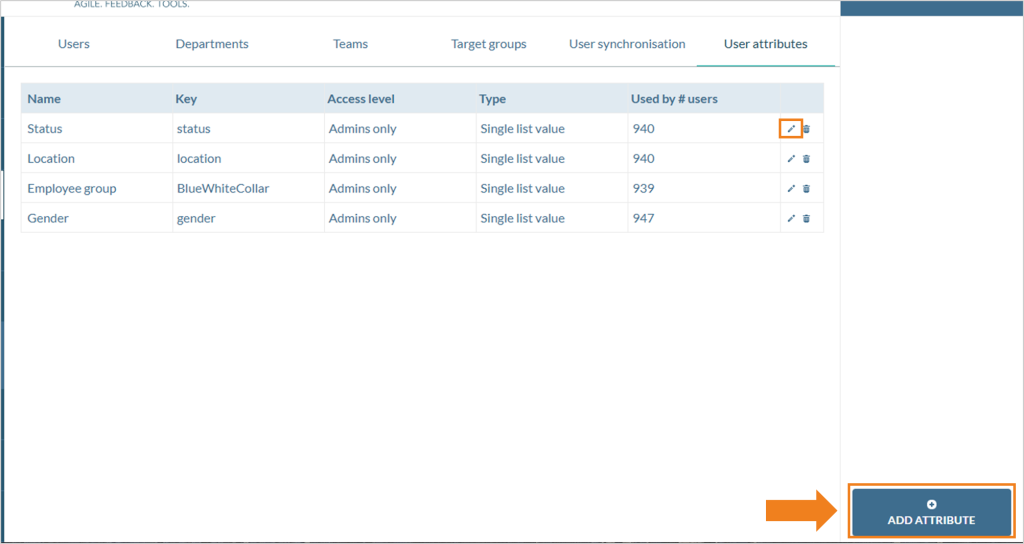
Click on “User” and then on “User attributes”.
A new attribute can be created in the bottom right-hand corner.
An existing attribute can be edited by double-clicking or selecting the pencil icon.
Various aspects of the attribute can now be edited in the editing window.
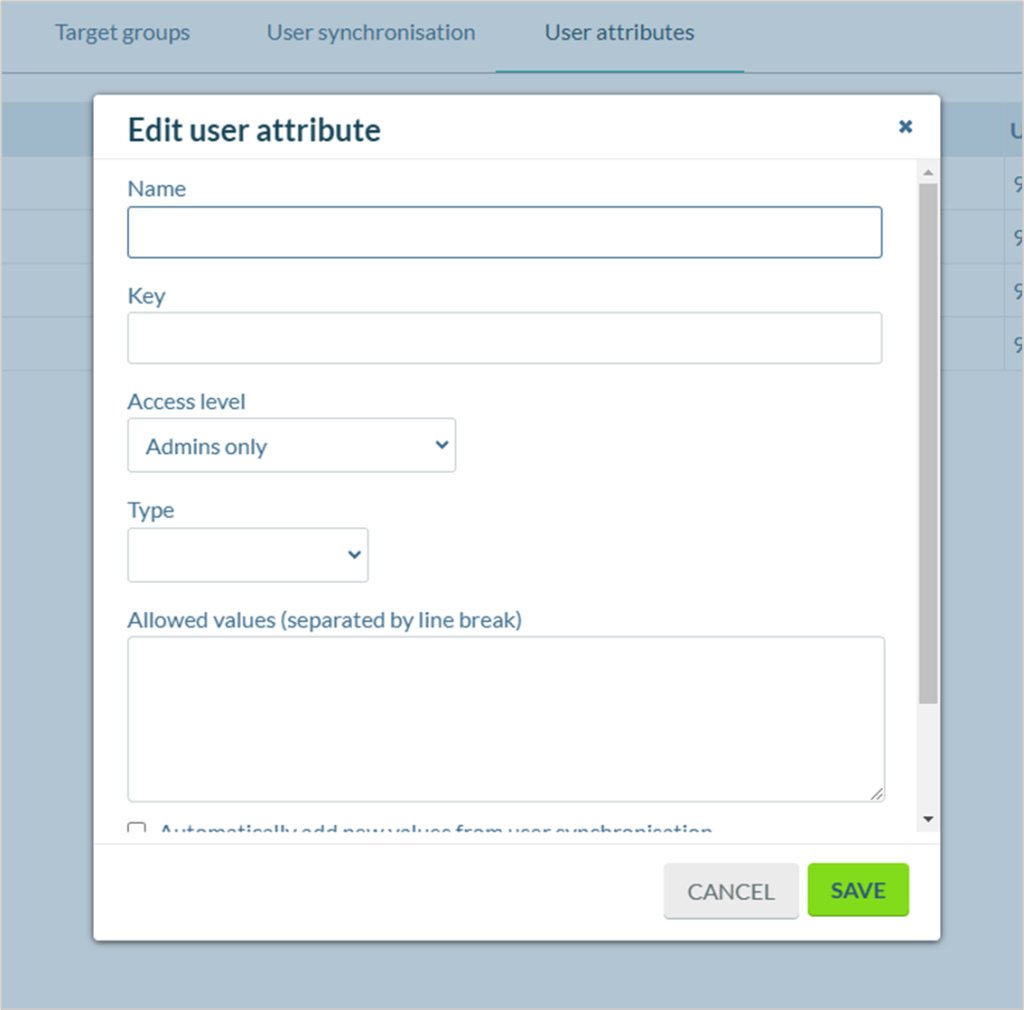
- Name: Designation of the attribute
- Key: Unique identification of the attribute
- Access level: Controls which authorizations are required for access to the respective attribute. You can choose between “Admins only”, “Users with authorization only” or “All”.
- Type: Defines the data type of the attribute values.
Insert: Logic operators of the “Type” option
Between & not between
The operators “between” and “not between” define a number range between two defined values, value 1 and value 2. With the “between” operator, all values between the values are addressed, the values themselves are NOT! With the “not between” operator, all values between the values are NOT addressed, but the values themselves and all values outside the range are.
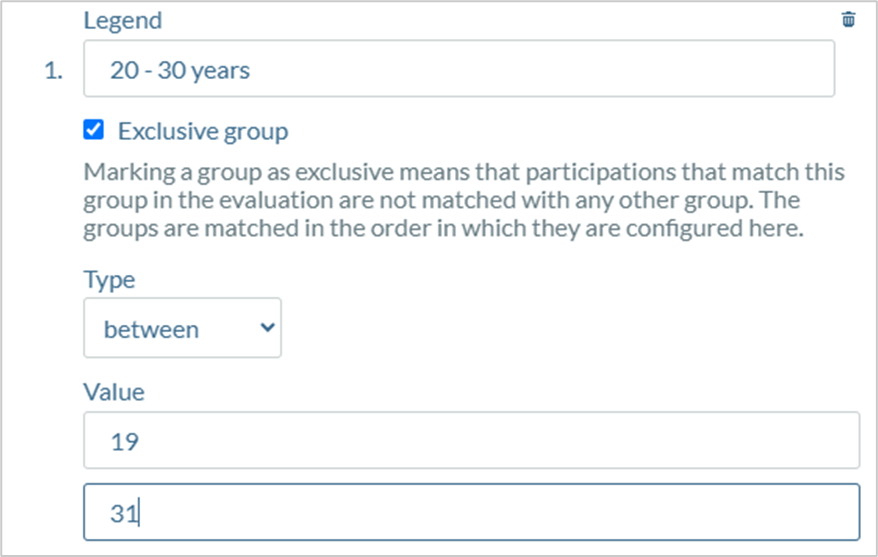
Example: The age group “20 – 30 years” can be entered with the “between” operator if “19” is entered as value 1 and “31” as value 2.
Equal & not equal
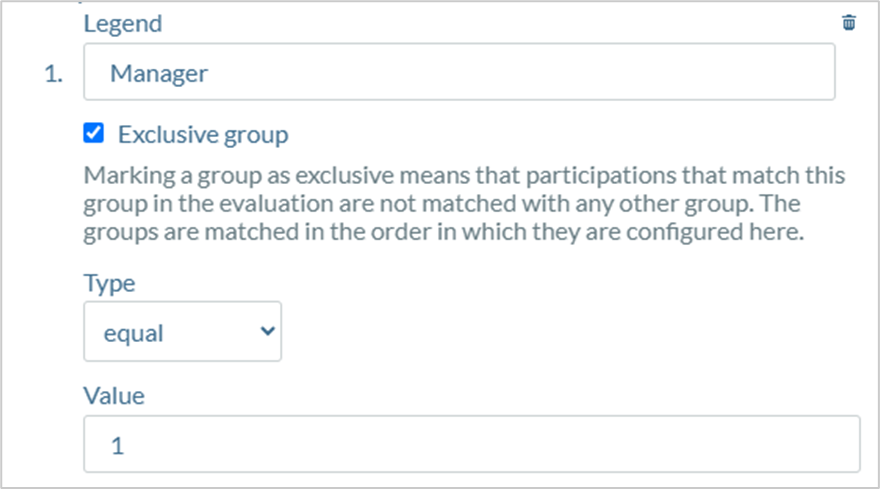
The operators “equal” and “not equal” are used for numerical values and imply that the specified value must either match the value in the organizational data exactly (“equal”) or should not match (“not equal”).
Example: In a “Manager” column, managers are assigned the value 1 and employees are assigned the value 0 or an empty cell. This means that managers can be entered with the logic operator “equal” and the value 1, while employees can be entered with the operator “not equal” and also the value 1.
Contains & does not contain
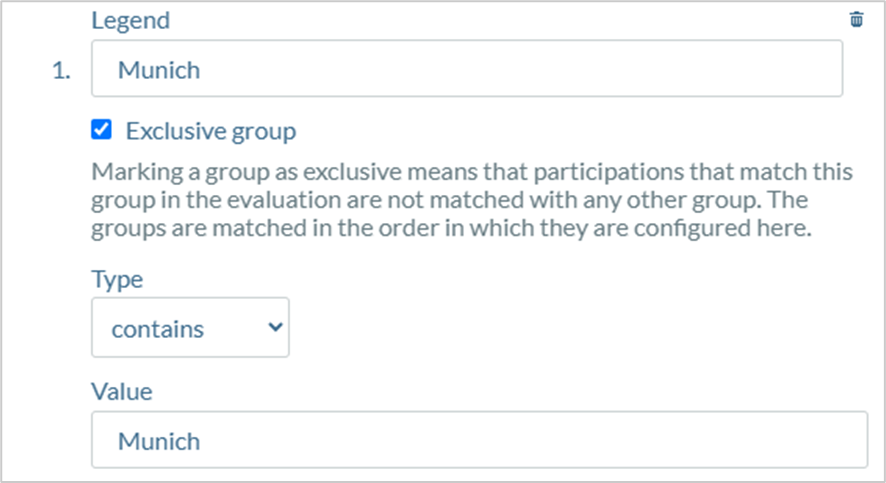
The operators “contains” and “does not contain” refer to values in text form and check whether the specified value is part of the value in the organizational data. Depending on the operator, the attribute is assigned or not if the match is successful.
Example: The location of an employee is to be found via a column in the organizational data in which the department name and location are listed together (e.g. Head of Marketing Munich). The “contains” operator fulfills this with the value “Munich”.
- Allowed values: Defines which values are accepted for the attribute. This allows the system to identify typing errors or incorrectly entered values during import.
Assigning user attributes
Attribute values are assigned to users via the user administration. Attribute values can either be assigned manually, uploaded together with the user data when importing the organizational data or updated via an interface. It is important that the attributes have been created beforehand.
Possible data types for attribute values
There are five possible data types for attribute values.
All data types can be grouped for a clearer presentation in the evaluations.
| Data type | Description | Examples | Grouping |
| Number or text | A number or a text is accepted. | Age, postal code, department name | necessary |
| Date | Data in common formats such as “dd.mm.yyyy” or “yyyy-mm-dd” are accepted. | Date of birth, date of entry, date of exit | necessary |
| Years since | Calculates the past years from a date up to the present date. | Age (based on date of birth), length of service (based on date of entry) | necessary |
| Single list value | Can contain a value from a previously defined list. | Job function, location, country, area | not necessary |
| Multiple list values | Can contain several values from a previously defined list at the same time. | Job function, area (e.g. matrix organization) | not necessary |
Create grouping
Click on “Add group” to add a new group.
The name of the group is entered under “Legend”.
The “Exclusive group” checkbox ensures that participations that match this group in the evaluation are no longer compared with any other group. The groups are checked in the order in which they are configured here.
A logic operator for grouping the values can now be selected under “Type”.
Under “Value”, you can specify which value or values the logic operator should refer to.
Special features
Single list value / Multiple list values
When selecting these data types, it is necessary to specify the list of permitted values. This can be specified under “Allowed values (separated by a line break)”.
If the checkbox for “Automatically add new values from user synchronization” is ticked, values that are present in the user data but not in the defined list are automatically added when the user data is updated.
Years since
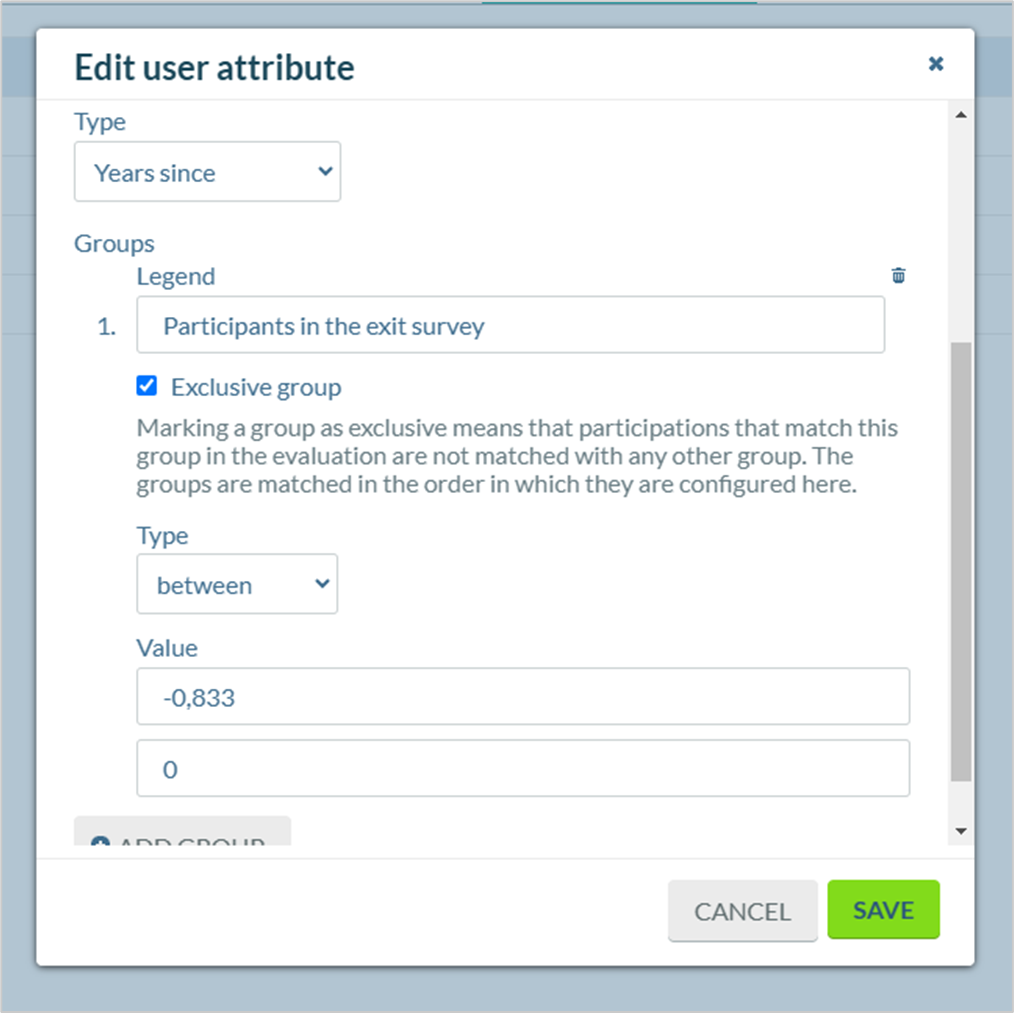
This data type calculates the years between the specified date and today’s date. Accordingly, values can also be less than 1. For example, one month corresponds to a value of 1/12 = 0.833.
If a period that lies in the future is relevant, the value must be given a “-”.
For example, if you want to group all users whose leaving date is between today and the date in one month, the configuration would be selected in this way:
Example of the configuration of the “Age” attribute
The “Age” attribute can be configured based on four different data types. Which configuration you choose depends on your personnel data and your preference.
Configuration with “Number or text”
You should only select this data type if the age is stored as a number in your personnel data.
Possible configuration:
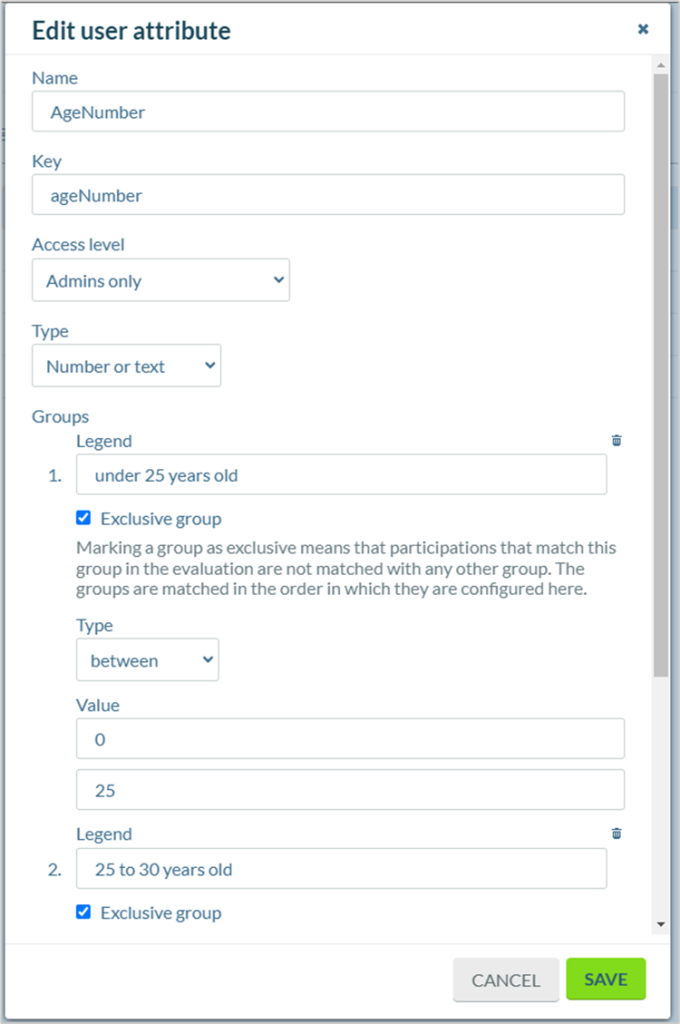
One disadvantage is that a fixed number must be specified for the grouping. If the user data is updated, this may have to be adjusted. We therefore recommend the use of “Years since”.
Configuration with “Date”
You should only select this data type if the age is stored as a date in your personnel data.
Possible configuration:
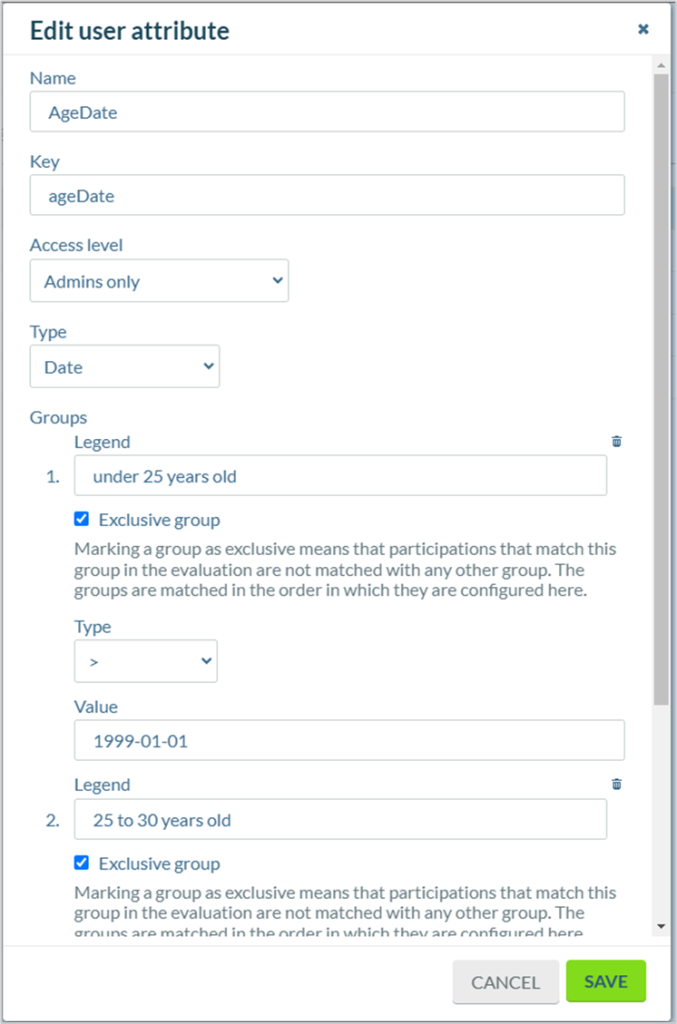
One disadvantage is that a fixed date must be specified for the grouping. If the user data is updated, this may have to be adjusted. We therefore recommend the use of “Years since”.
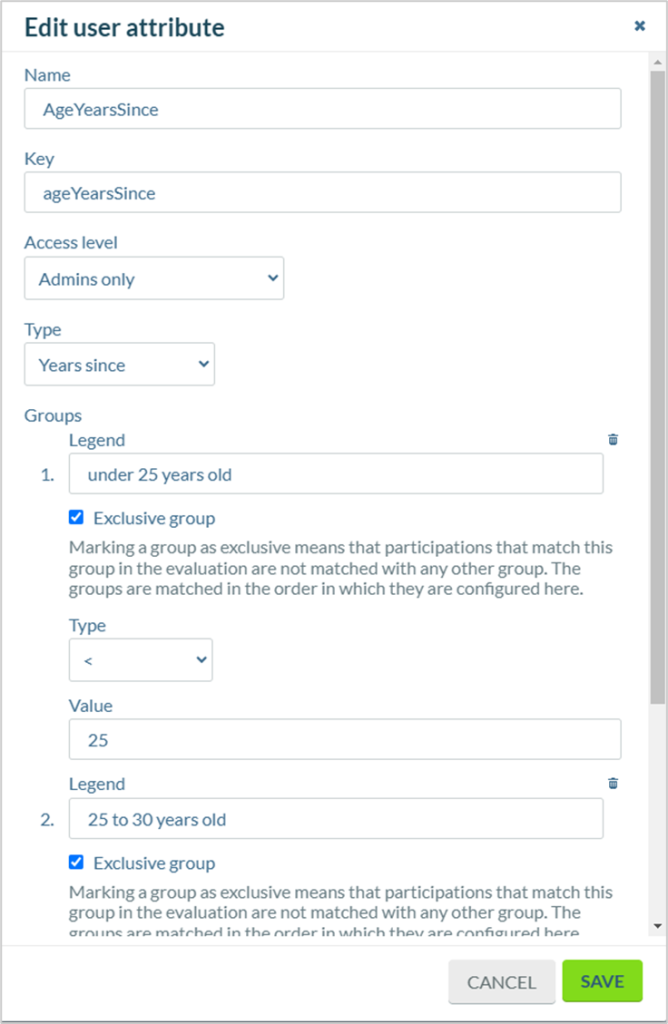
Configuration with “Years since”
You should only select this data type if the age is stored as a date in your personnel data.
Possible configuration:
Configuration with “Single list value”
You should only select this data type if the age is already grouped in your personnel data.
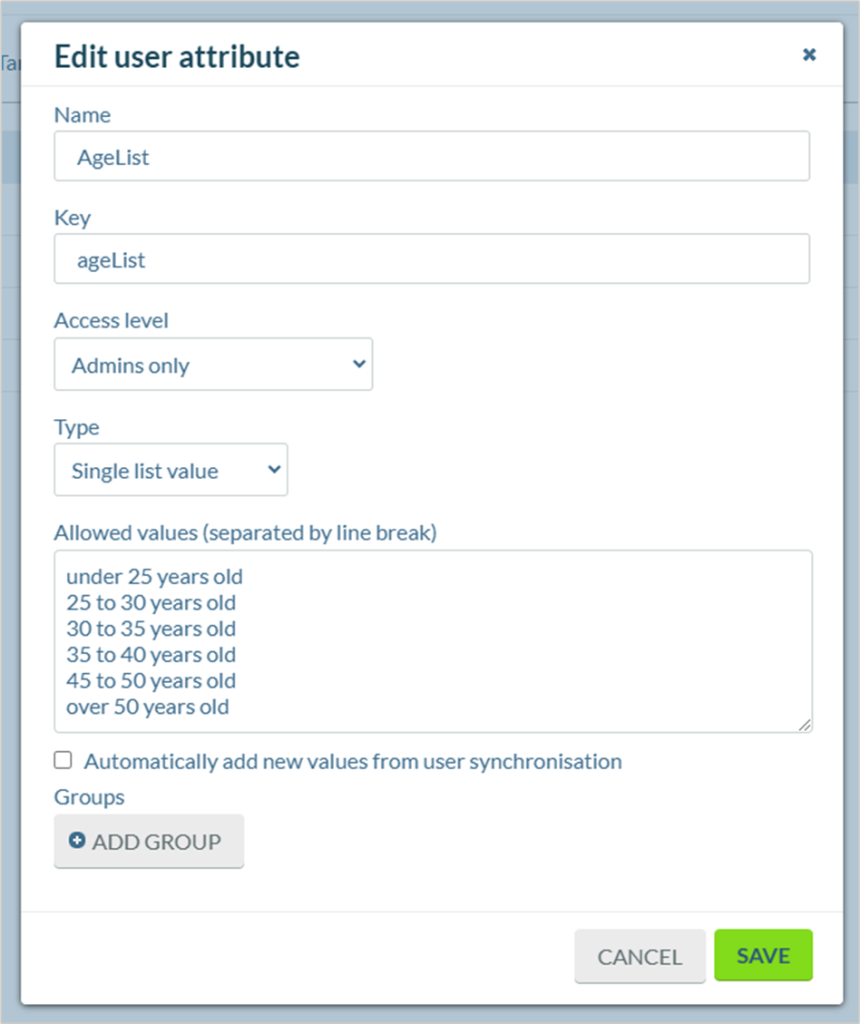
Possible configuration: