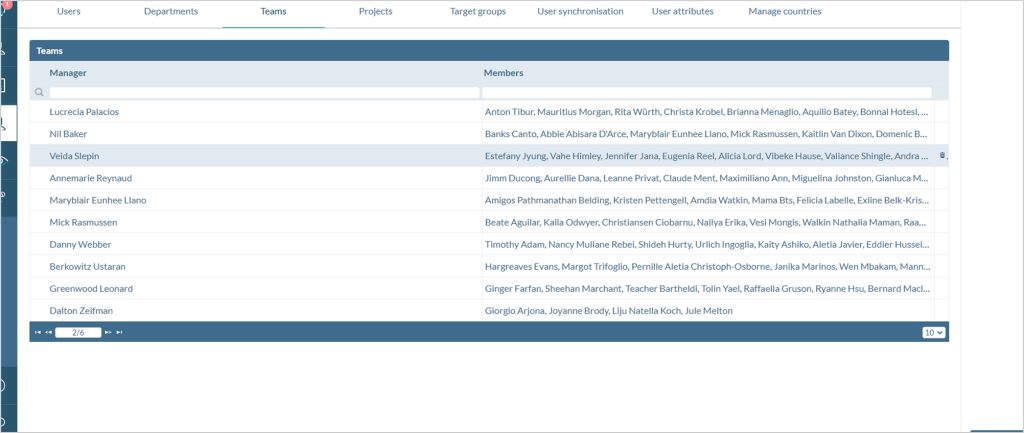
General Information
Teams are by default the basis for the assignment between managers and employees for the feedback formats Team Feedback, 360° Feedback, and Employee Discussions.
Access to user management is available via the “Users” button in the left menu bar of the tool. One tab in the user management is “Teams“.
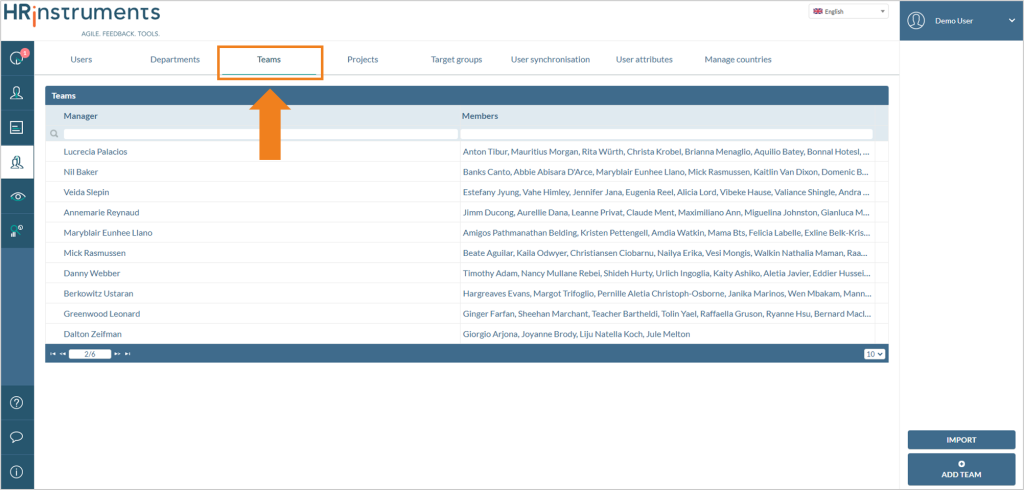
Search/Filter: Each column can be searched or filtered for persons.
Add New Teams
New teams can be created via a data import. More information about this can be found here.
Alternatively, teams can be added manually.
Step 1: Select “Add team” in the bottom right corner of the team manage ment.
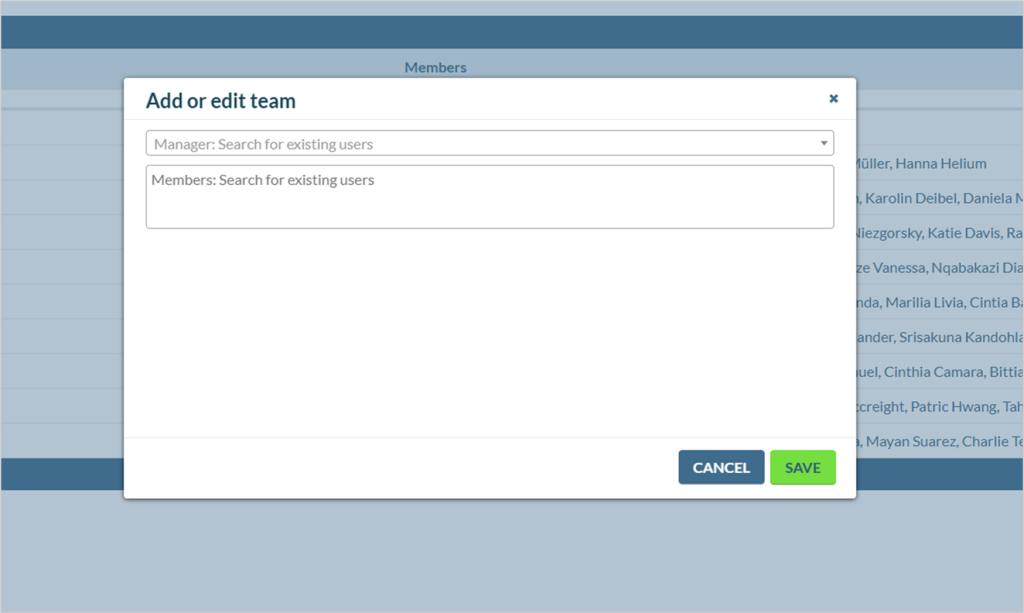
Step 2: A window opens where you can create or edit new teams. Enter the manager and team members.
Step 3: Click “Save” to create the team.
Edit Teams
Find the manager whose team you want to edit. Click on the respective team to display the “Edit Team” option in the bottom right corner of the tool. Alternatively, you can double-click the team. A dialog will open where you can edit the team members.
Delete Teams
Select the team you want to delete. Click the trash icon to delete the team.
Deleted teams cannot be restored but can be created anew.