What authorizations does each user have?
Some rights are implicitly granted to every user and cannot be revoked in the rights management:
- Receive and send instant feedback
- Answer and send instant feedback requests
- Receive responses to your own instant feedback requests
- Receive and send awards
- Manage your own development tasks
- Manage your own goals
- Use assigned goal templates
- Manage your own tasks
- Participate in surveys (requires invitation)
- Change your own master data
- View survey results of your own 360° feedback
What rights are there and what do they allow?
The following rights can be granted in the user administration and for user roles:
| Access user attributes | This right allows users to filter by user attributes configured with the “User with acces right only” access level when inviting participants and viewing survey results. |
| Manage all feedbacks | Users with this right can view, edit, (de)activate and delete all feedbacks under “All feedbacks” in the “Feedbacks” menu item. However, this right does not mean that the results can be viewed. |
| Manage customer account | This right grants access to the modules: Departments Manage awards Import users User synchronization User attributes User roles Customer account Countries Performance periods Goal attribute administration In addition, only users with this right may grant and revoke the rights “Manage customer account“, “Manage users” and “Import organizational data“. Overall, this right is to be regarded as the “administrator right”. |
| Manage dashboard documents | This right allows users to manage the files uploaded by all users on the dashboard in the Documents tile. |
| Manage goal templates | Users with this right have access to the “Goal attribute administration” module and can create, edit and delete goal templates there. Each goal template can be assigned to specific departments, teams or managers. |
| Manage tasks | Users with this right have access to the “Manage tasks” and “Task statistics” modules. Tasks in the follow-up process can be managed there and assigned to employees or statistics on these tasks can be viewed. |
| Manage templates | Users with this right have access to the template editor, which they can use to create new templates and change and delete existing templates. This also allows you to activate templates for users with the “Start their own feedbacks” right. |
| Manage users | Users with this right have access to users, departments and teams. Users, departments and teams can be created, edited, deactivated/activated and deleted. This also includes the assignment or revocation of roles and rights. The right also grants access to the modules: Countries Departments Projects Target groups Teams Users This right can only be granted and revoked by users with the “Manage customer account” right. |
| Start fast lane feedbacks | This right is identical to “Start their own feedbacks“, but conversely only applies to templates that have been configured as Fast lane feedbacks. |
| Start their own feedbacks | Users with this right can start, edit, deactivate/activate and delete their own feedbacks. Templates must be enabled for this right to be used. This can be set with the “Allow access to template for users” option in the template editor under Rules. This right only applies to templates that have not been configured as Fast lane feedbacks. |
| View all feedbacks | Users with this right can see all feedbacks under “All feedbacks” in the Feedbacks menu item. However, this does not mean that the results can be viewed. |
In addition, there are template-, department- and user-specific rights.
Template specific rights
If the corresponding setting is active for the customer account, users can be granted rights to templates.
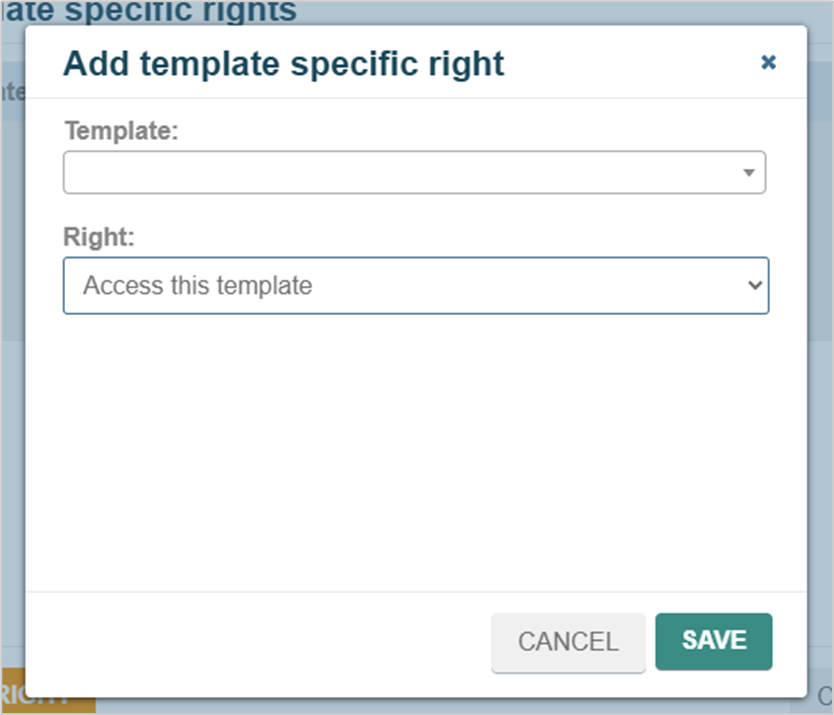
The desired template and right is set in the pop-up.
The right “Access this template” allows users to apply their other rights (e.g. “Manage all feedbacks“, “Manage templates“) to these templates.
These rights can also be granted or revoked on the “New feedback” page. This means that users without the “Manage users” right can also control template access!
Department specific rights
Users can be granted rights to departments.
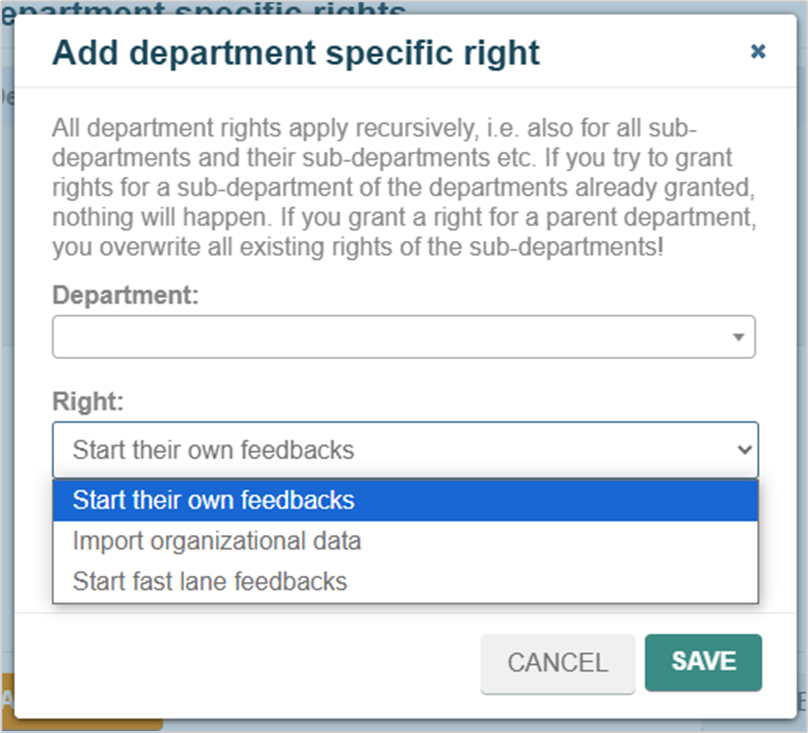
The “Start their own feedbacks” and “Start fast lane feedbacks” rights are identical to the normal user rights (see table above), except that they relate to the selected department. This is only relevant for employee and pulse surveys. Users may only start these surveys for their own department and additionally for the departments listed here.
The “Import organizational data” right allows users to import organizational data for these departments and manage it in the user administration.
Department-specific rights apply recursively, i.e. also for all sub-departments and their sub-departments etc. If rights are granted for a subordinate department, no new department is added to the list. If rights are granted for a higher-level department, this overwrites all existing rights for the sub-departments.
The desired department and right are set in the pop-up:
User specific rights
Users can be granted rights to other users.
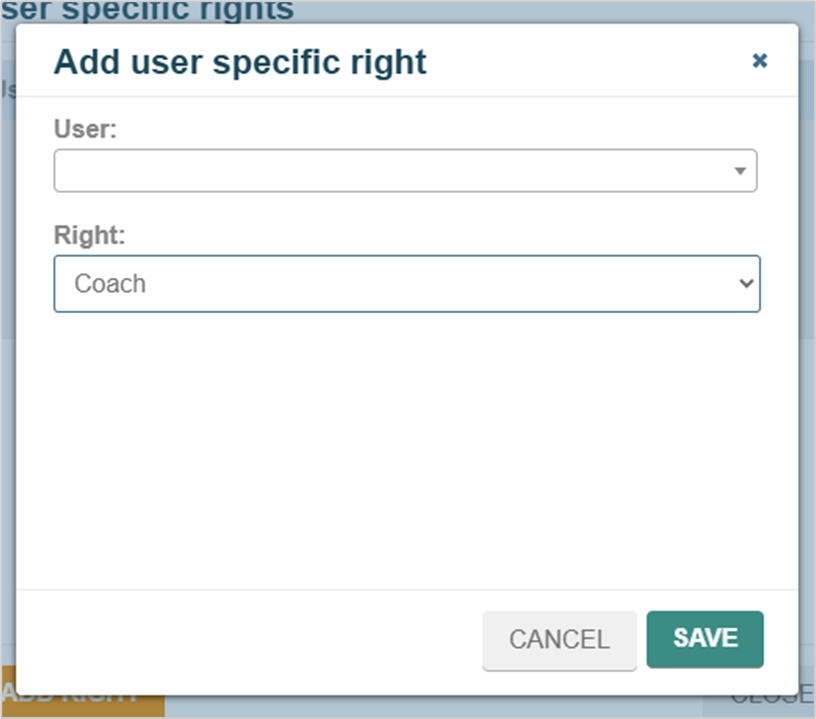
The “Coach” right assigns the user to the other user as a coach.
In personal feedback formats, coaches of the feedback recipient are used as additional report recipients to be released. This mechanism can be used, for example, to integrate external coaches.
The desired other user and the right are set in the pop-up: