
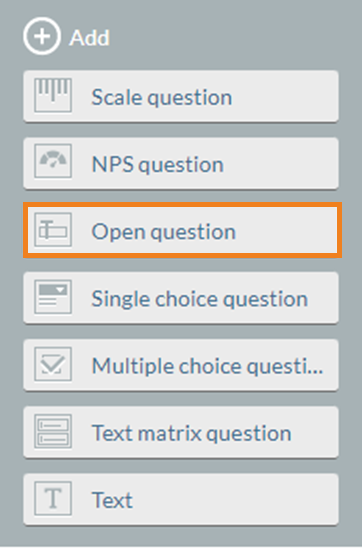
Step 1: Select an open question.
Once you are in the “topics and questions” section within the template, click on “open question” as a question type.
Step 2: Configure the open question
Type in the question you would want the participant to see into the field “observer assessment”. An open question in the template editor as well as in the survey could look like this:


Obligatory field: The use of obligatory fields in open questions depends on the objective of the question and survey. If open text fields are meant to be merely “optional”, (e.g., if you want to ask whether the participant would like to add something additional to the survey or the topic?) it can be useful to set the required field to “No.” This way, no warning message will be displayed if the open question is left unanswered. However, if the text fields are intended to capture essential information for the survey, considering “No, but warn” or even “Yes” options might be the most suitable configuration option.
Hide this question if:
You can configurate to display your text question only to specific participants. If you want to set up a filter, you find a detailed description in our separate Help Center article here.