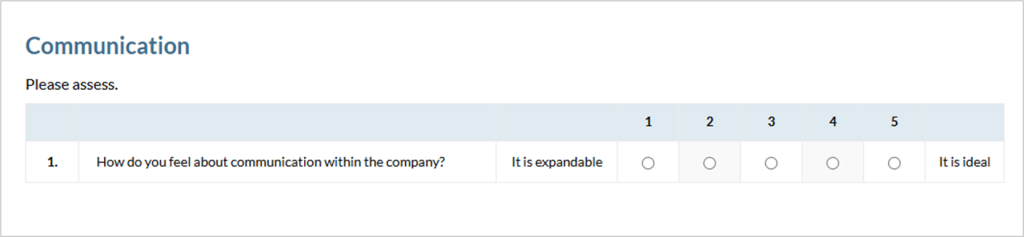
Basics
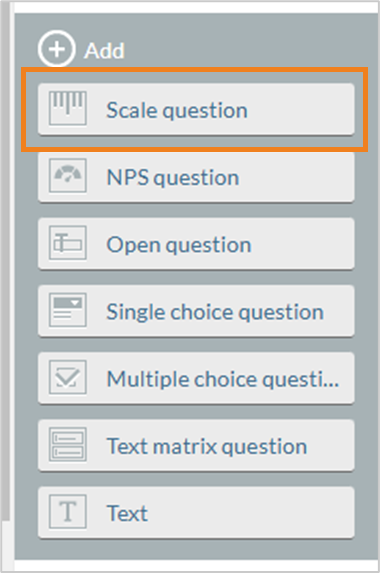
Step 1: Select scale question.
In the template under “Topics & questions” > “Edit topic”. Select “Scale question” (=topmost).
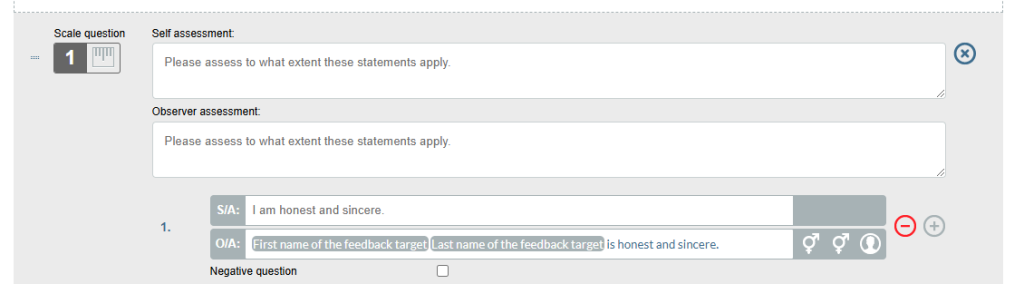
Step 2: Fields for the question texts
Fields for observer assessment are only displayed for surveys with several participant types and are only relevant for these (360°, feedback for managers, peer feedback). Here the question should be asked in such a way that it is completed by the feedback recipient.

The following is an example of how this could be implemented:
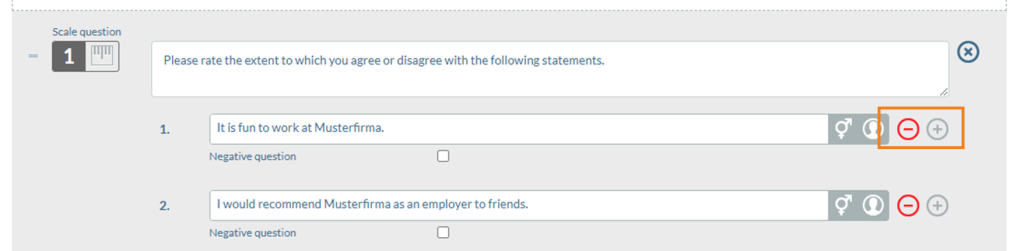
Step 3: Include sub-questions
This is where the plus symbol on the right-hand side comes in: Here you can add further sub-questions (and delete them again using the minus symbol).
Extended: Configuration options for scale questions
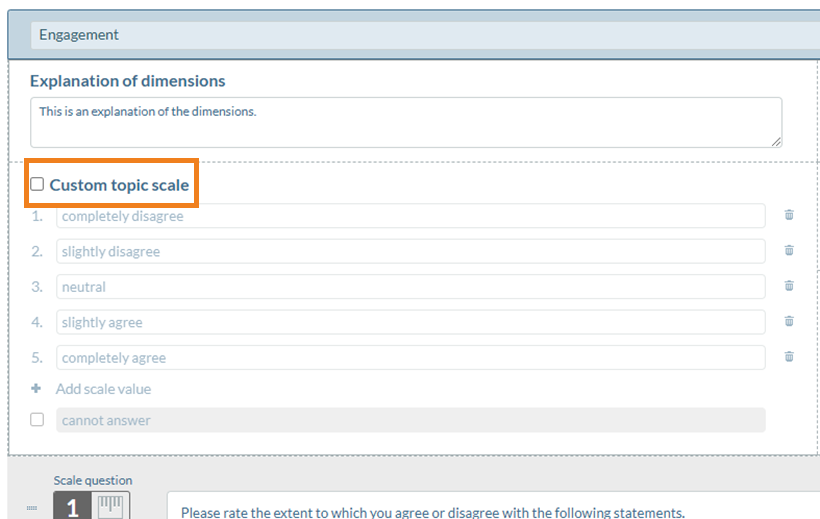
Custom topic scale
A topic-specific scale can be created here. We recommend using this only in exceptional cases. It is best to discuss this with your HRinstruments contact person.
If the field is not ticked, the scale stored by default under the “Rules” tab is used. The “cannot answer” field can also be switched on or off there.
Negative questions
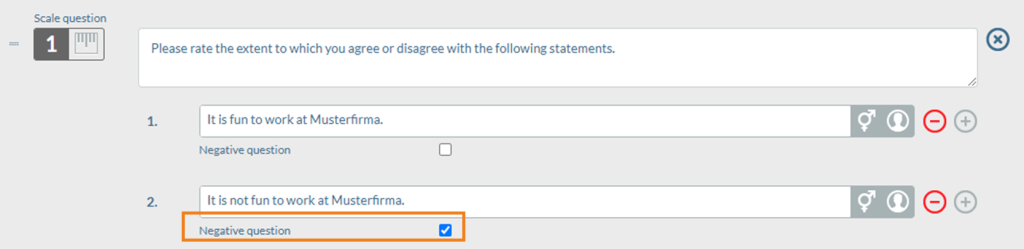
By clicking on the box, the question is evaluated as a negative question in the evaluation. Here you can see an example of two scale questions in which the second question is configured as a negative question, i.e. is “reversed” in the evaluation. If the answer options were “1-5”, an answer “2” to the second question is therefore evaluated in the same way as an answer “4” to question 1:
Obligatory questions
This field determines whether respondents are required to complete the question in order to continue in the questionnaire. There are three options for this.
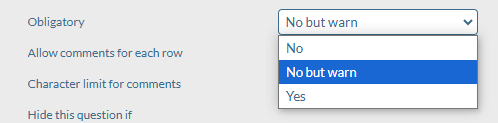
- If the answer is “No”, the person completing the survey can click on the next page of the survey without a warning.
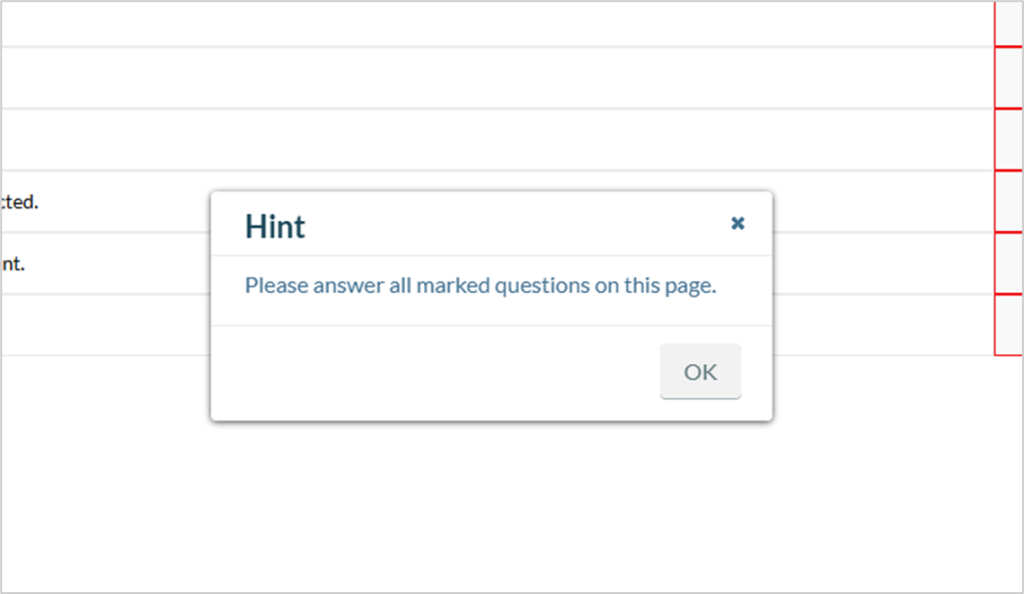
- In the case of “No but warn”, a warning message appears when participating in the survey if questions have not been answered. By clicking the “Next” button again, the person completing the survey can still proceed to the next page of the survey.
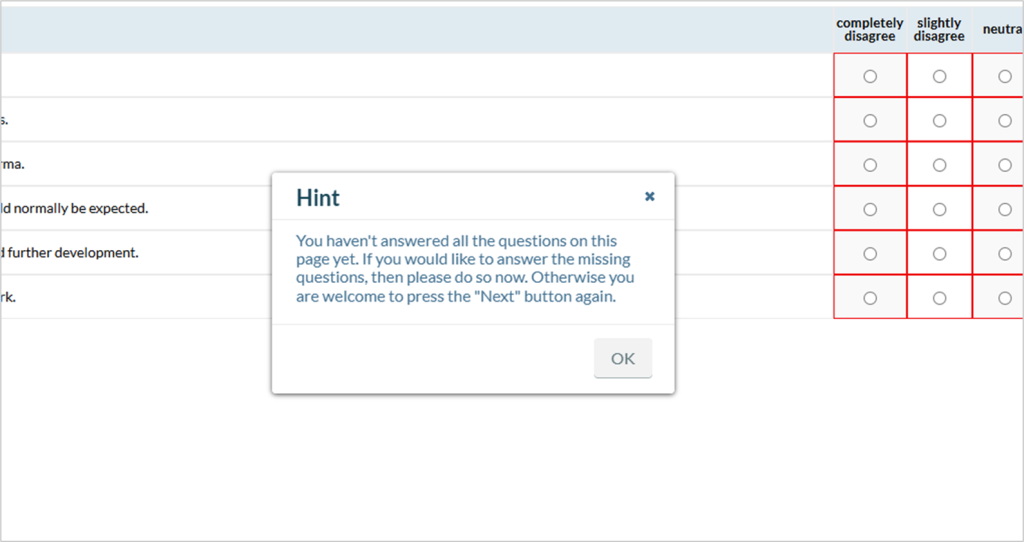
- If “Yes” is selected, a warning message will appear when participating in the survey if questions have not been answered. The person completing the survey can only move on to the next page of the survey once they have answered all the questions.
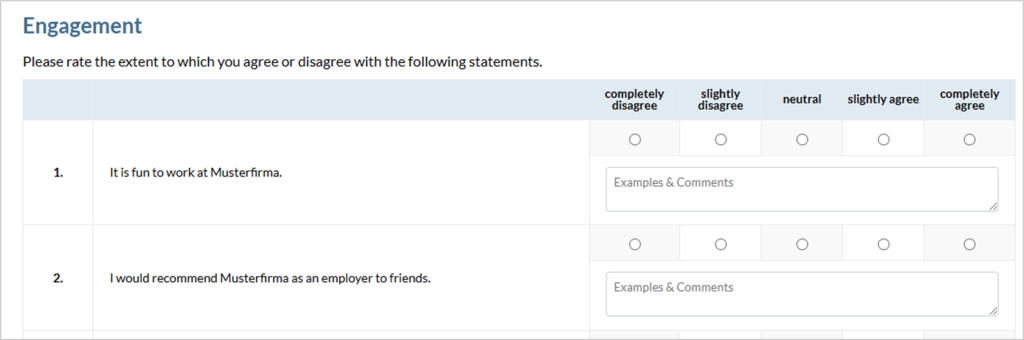
Allow comments for each row
Shows participants a text field for comments on each row.
Hide this question if …
Activates a filter for the respective question so that it is only displayed under certain conditions.
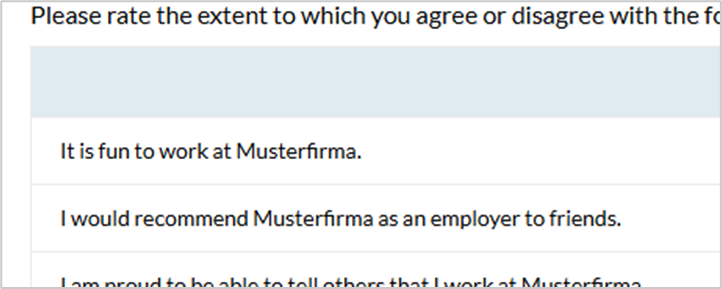
Disable row numbering
Hides the row numbering.
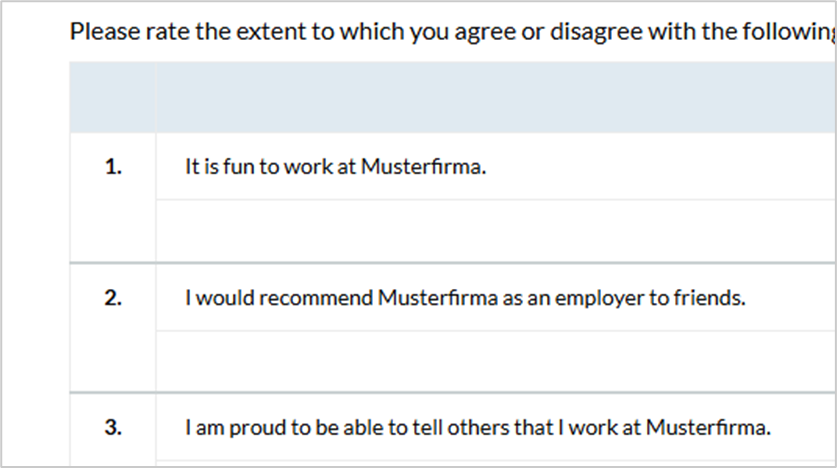
Use separate lines
Separate the individual sub-questions visually with lines.
Use anchor texts
Here you have the option of inserting anchor texts on the left and/or right as a description. Two text fields open when you click on them, which you can label.
Hint: in certain cases, this can also be used well with purely numerical scales, which name adjectives on the left and right.