
Here you can find out how to access the template editor.
The first page of the template editor looks similar to this screenshot:
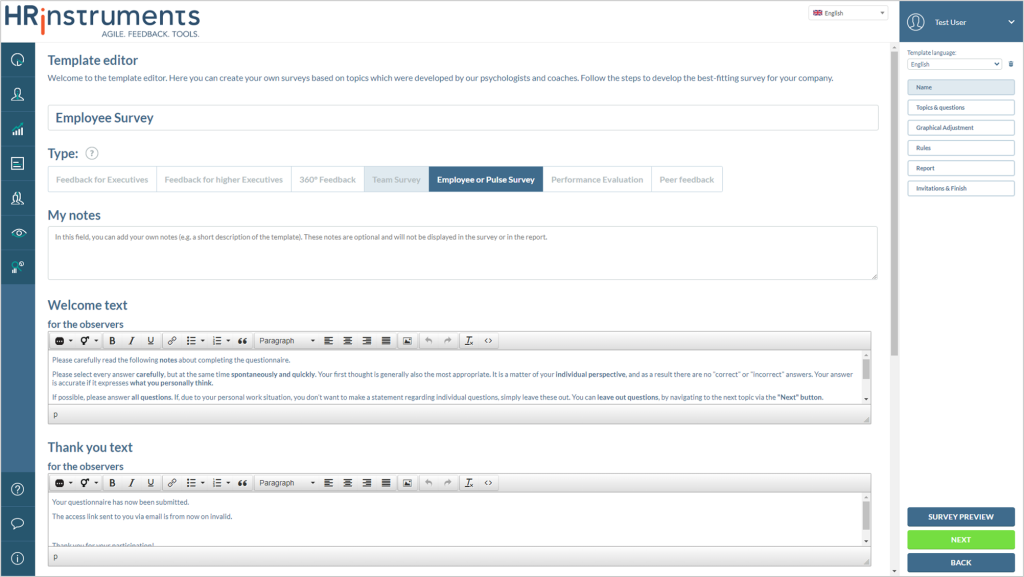
From here, some basic information can be viewed and edited.
Template language
You can set the language of the template at the top right of the screen.
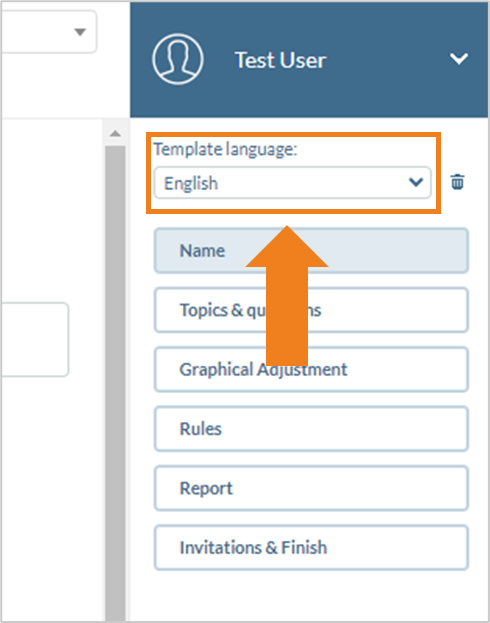
The different language versions of the template only affect the texts. All other settings (e.g. rules or question filters) apply to the entire template.
As soon as a new language is selected for a template and content is inserted there, the respective flag appears as an icon on the tile in the template overview when the template is saved.
The display language of the page can also be set on the left above the template language.
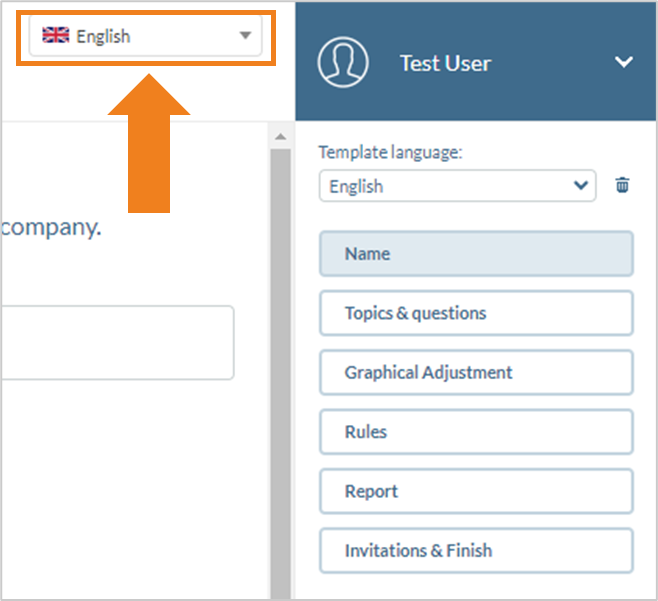
The display language only determines the language in which the editor is displayed. It has no effect on the final template language.
Navigation via the tab overview
On the right-hand side of the screen, you can see at any time which step of the template creation process you are currently in.
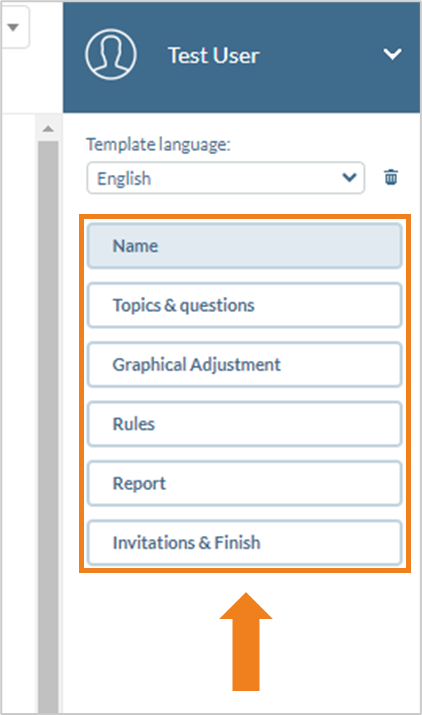
The current step in the template creation process is always highlighted in gray. You can quickly switch between the individual tabs by clicking on other tabs.
Navigation via the buttons and survey preview
In the bottom right-hand corner of each overview page, the “Next” and “Back” buttons can be used to call up either the next or the previous step in the template creation process.
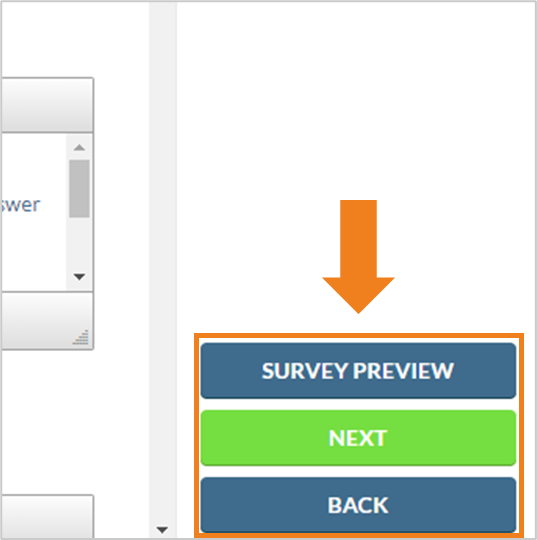
In addition, a survey preview can be called up on every page of the editor using the “Survey Preview” button.
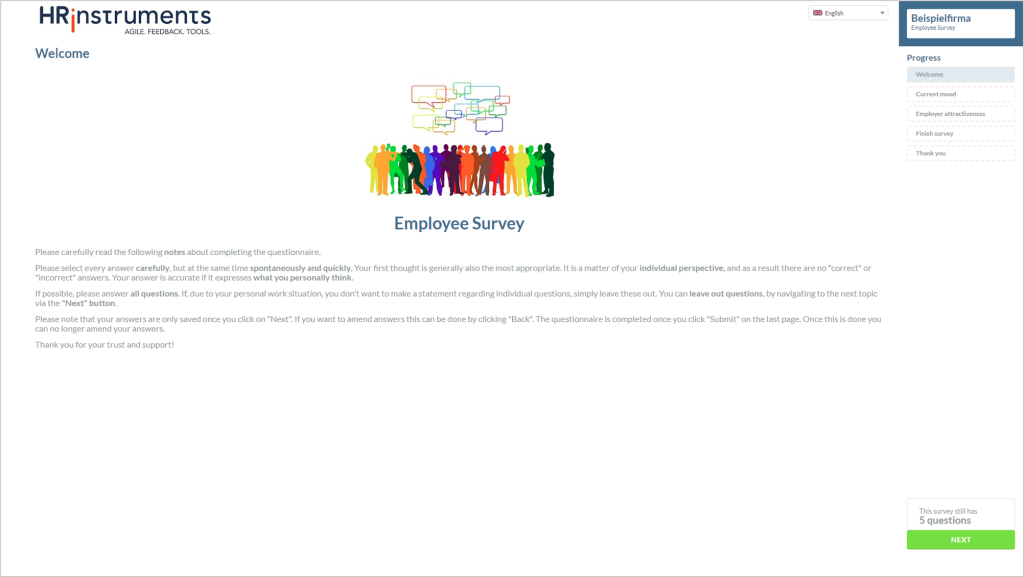
This is the display of the questionnaire from the respondent’s perspective. This makes it possible to see at any time how changes made affect the actual display of the questionnaire.
Here, too, the “Next” button on the right-hand side of the screen can be used to switch to the next page. You can also change the language of the survey using the drop-down menu at the top right of the screen.