
General rules
Scale
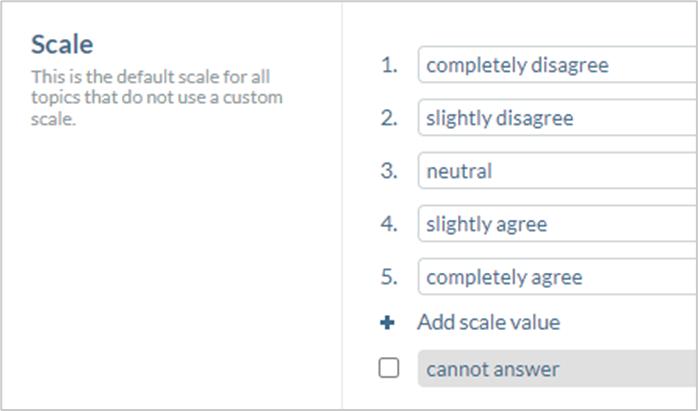
Here you can set the scale for all scale questions in the template whose topic does not use its own scale. By default, a five-point Likert scale is stored here. Scale values can be added or deselected. The labels of the scale values can be edited here. A fallback option can also be selected and specified.
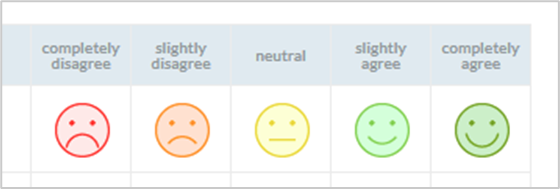
Smiley scale
By ticking this checkbox, smileys can be displayed next to the text for illustration purposes.
Traffic light display of the scale
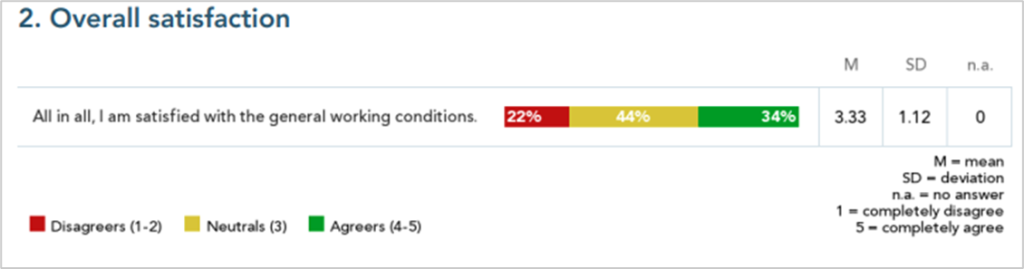
Here you can specify from which agreement, neutral or rejection values for a scale question the label “Agree”, “Neutral” or “Disagree” should be assigned. Settings made here affect all distribution diagrams and all other places where questions are categorized.

For the example above, this means that in the distribution diagram in the reports, for example, participants are categorized according to their answers as follows:
- “completely disagree” (1) and “slightly disagree” (2) as disagreers
- “neutral” (3) as neutrals
- “slightly agree” (4) and “completely agree” (5) as agreers
Survey on one page
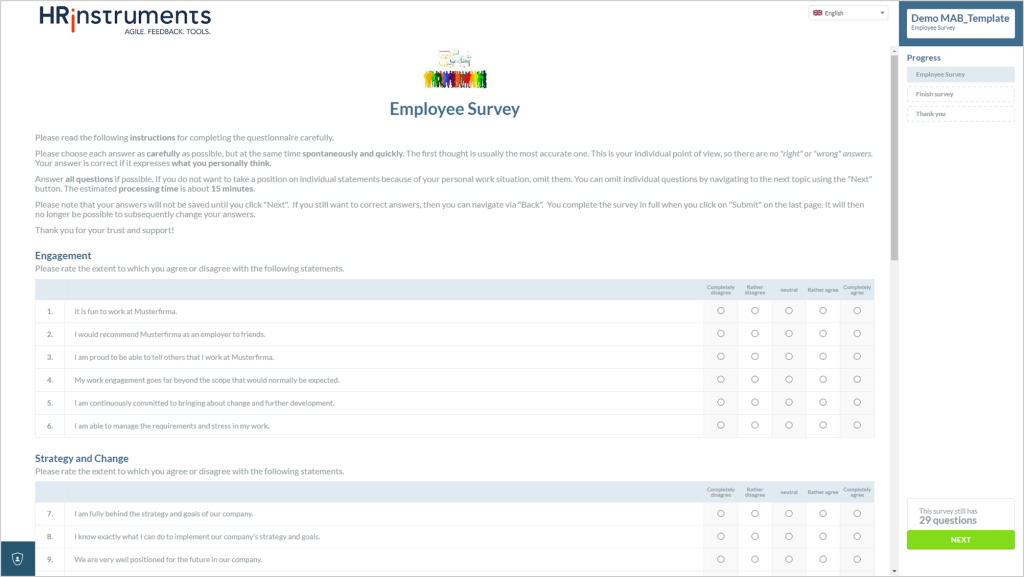
If this option is selected, all topics are displayed on one page. If it is not selected, each topic is placed individually on its own page.
Confirmation page
This checkbox activates an additional page before the last page of a survey, which asks the respondent to confirm their answers and informs them that it is no longer possible to change their answers after they have been sent.

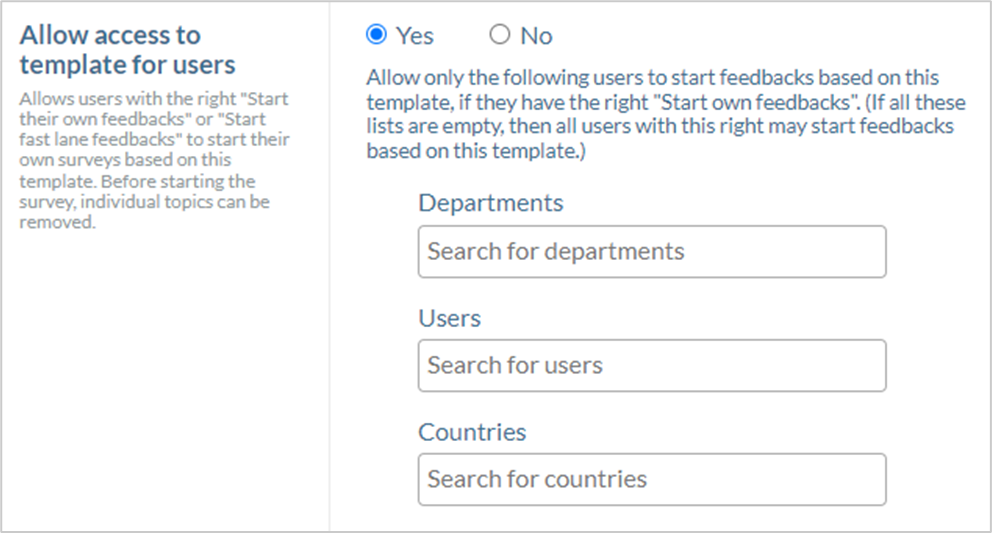
Allow access to template for users
With this option, you can decide whether and by which users the feedback to be created can be started. Saved departments, users and countries can be selected here.
Turn template into Fast Lane template
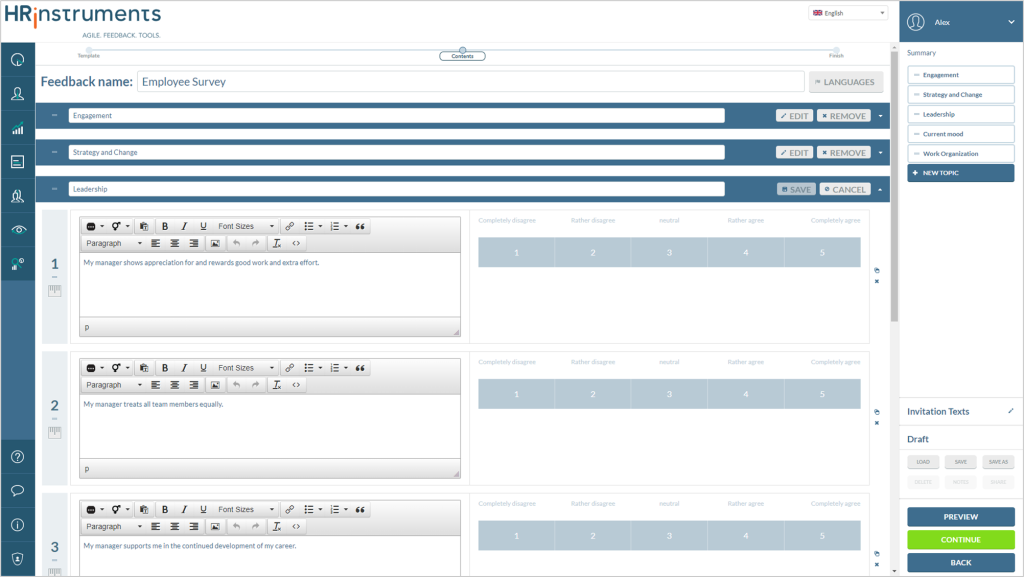
A template can be set to “Fast Lane” mode here. This allows users with the “Start fast lane fedbacks” right to start surveys based on this template.
Before starting the survey, existing topics and questions can be edited, removed or added.
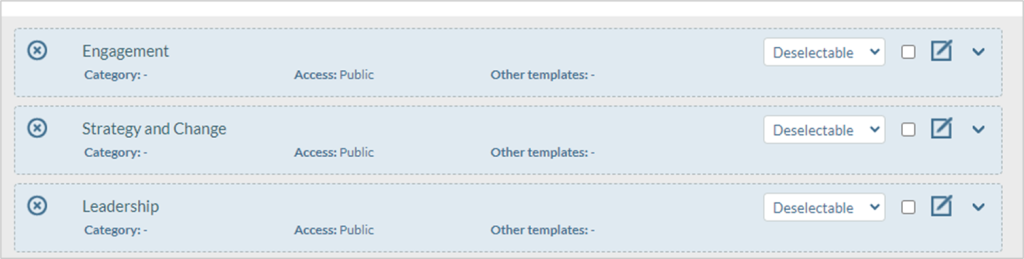
In the topic overview, you can select which topics can be edited in Fast Lane mode by activating the checkbox.
Reminder email
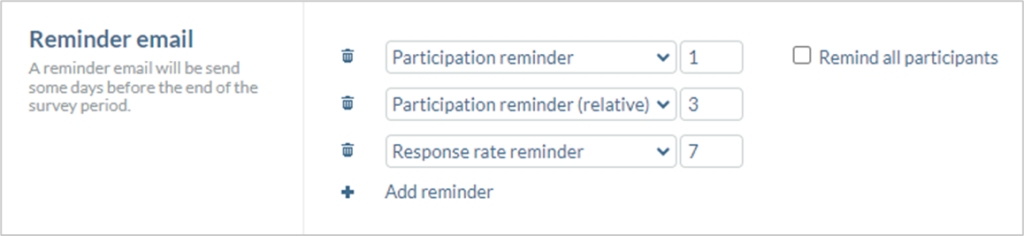
Reminder e-mails can be sent at specific times.
- Participation reminder: Participants are reminded of the survey x days before the specified end of the survey period. This number x can be defined in the text window on the right of the drop-down menu.
With the “Remind all participants” checkbox, the reminder emails are not only sent to participants who have not yet taken part in the survey, but to all participants in the survey. - Participation reminder (relative): Participants are reminded of the survey x days after the time this participant is added. This number x can be defined in the text window on the right of the drop-down menu.
- Response rate reminder: The creator of the feedback receives a reminder with information on how far the response rate of the current survey has already progressed.
End date
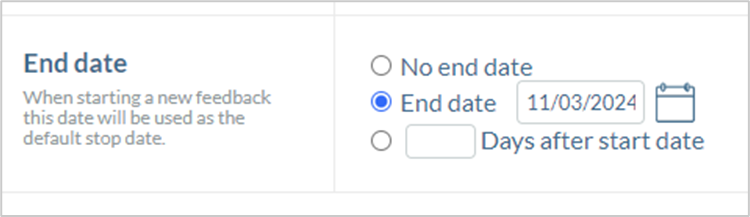
An end date for the survey can be selected here, which is automatically preconfigured when the survey is started. It can still be edited at the start of the survey.
The following options are possible:
- No end date: The end date is not preconfigured, but must be selected at the start of the survey.
- End date: xx/xx/xxxx: The set date is preselected at the start of the survey.
- xx Days after start date: The end date is preselected relative to the start date xx days later.
Type-specific rules
Employee or pulse surveys
Report notification to employees
Here you can specify that an e-mail is sent to employees as soon as the reports are available. If it is not possible to create the reports, this is also communicated by email with a reason.
This can promote the implementation of follow-up processes.
Direct reports
Here you can specify whether and for which departments the managers’ responses are to be evaluated separately. Either none, all or only the lowest department levels can be selected. You can find more detailed explanations of Direct Reports and this option here.
Team survey
Prefill participants
This option can be used to bypass the manual invitation. If the checkbox is selected, all stored team members are automatically invited to the survey.
360° feedback
Nominate participants
With this option, the feedback recipient can be allowed to independently invite additional participants without additional authorizations.
Cycle
An annual reminder for the use of the template for a survey can be created here.

You can set the exact date on which the annual reminder should be sent, the status of the reminder (active/inactive) and whether only managers should be included.
Feedback for Executives & Peer feedback
Cycle
An annual reminder for the use of the template for a survey can be created here.
You can set the exact date on which the annual reminder should be sent, the status of the reminder (active/inactive) and whether only managers should be included.
Performance Evaluation
Skip preparation
Using the drop-down menu of this option, the preparation phase of the performance assessment can be included, omitted or offered as an option.
Goals
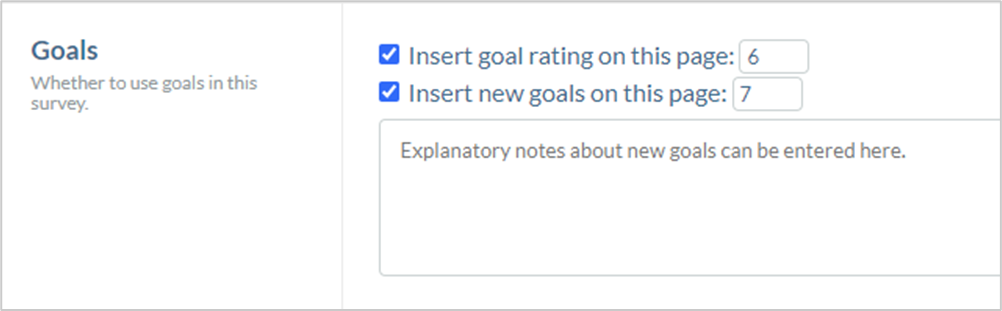
First of all, you can specify on which page of the questionnaire goal evaluations and new goals should be displayed. There is also a text field in which explanatory notes on new goals can be recorded.
Development measures
Here you can specify how further development measures are to be included in the survey. You can find more detailed information here.